
Changelog

Follow new updates and improvements to Swif.ai.

What's New: Employee Activity Logs & Offboarding Audit Reports
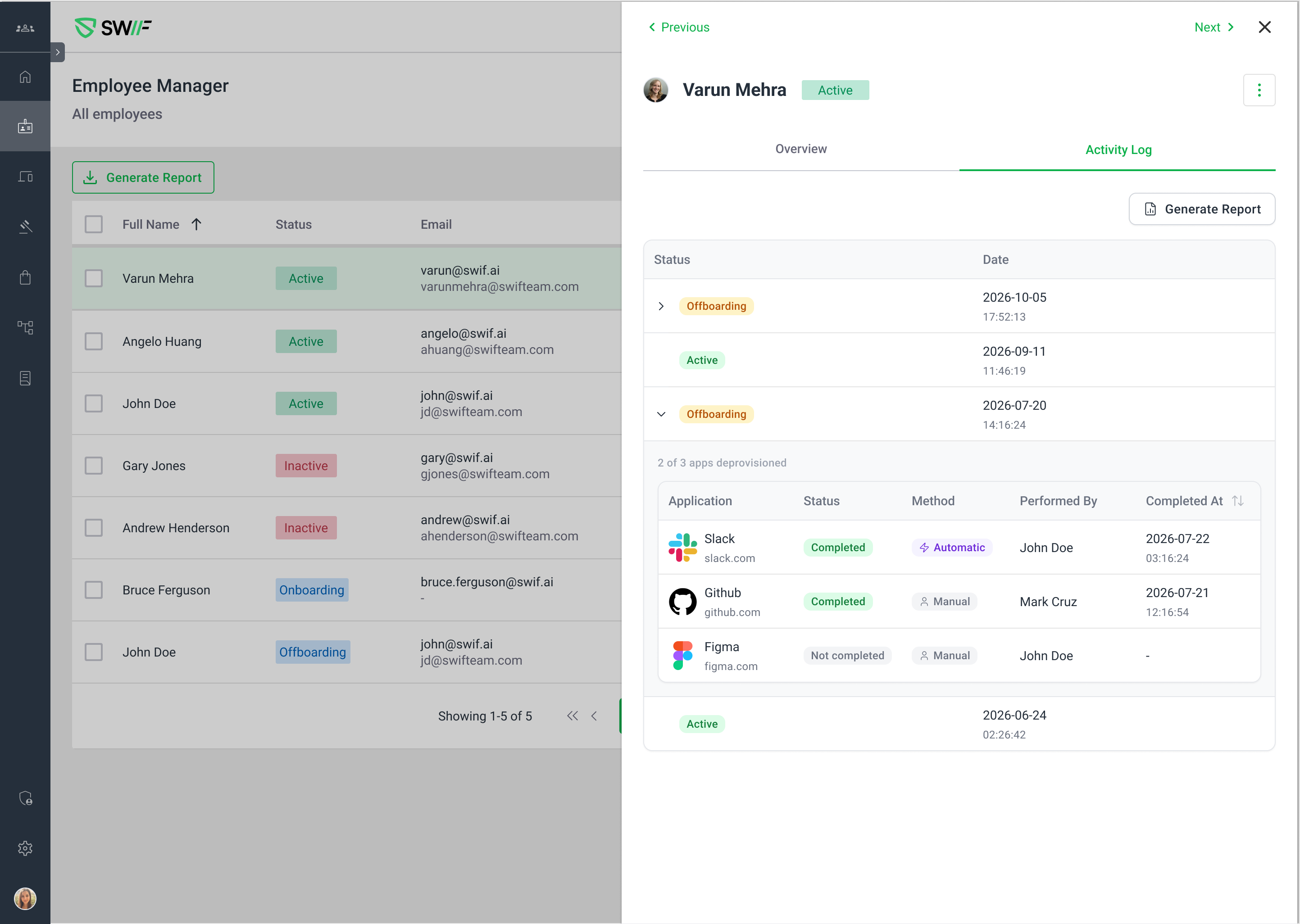
Maintaining audit readiness (SOC 2, ISO 27001, NIST) requires clear and verifiable proof of access revocation whenever an employee leaves the team.

With this update, we’ve completely redesigned the Employee Activity Log and introduced a Cross-Employee Report Generator to give administrators granular visibility and downloadable audit evidence for both automated (SCIM) and manual deprovisioning events.

Redesigned Activity Log Table

The horizontal timeline in employee profiles has been replaced with a clean, structured table view:

  • Expandable Lifecycle Events: Easily expand major status changes (e.g., Onboarded, Deactivated) to inspect underlying deprovisioning steps.

  • Per-App Deprovisioning Details: View application name, completion status, deprovisioning method, performer, and exact timestamps for every revoked account.

  • Method Indicators: Clear visual badges and tooltips distinguish between Automatic (SCIM) instant revocation and Manual admin sign-offs.

Persistent Audit History Across Reactivations

  • Offboarding records and timestamps are preserved indefinitely.

  • If an employee is reactivated, their past offboarding audit trail remains intact and accessible.

  • Interrupted or phased offboarding flows safely retain completed app logs without data loss.

Cross-Employee Report Generation & Exports (CSV / PDF)

Admins can now generate and export centralized offboarding reports across the entire organization:

  • Dedicated Report Hub: Access via the Generate Report action directly from the Activity Log.

  • Flexible Filters: Filter by employee, historical lifecycle statuses (e.g., Deactivated captures any user who held the status historically), and custom onboarded/deactivated date ranges.

  • Audit-Ready Exports: Download full logs in CSV (for spreadsheet analysis) or PDF (for auditor-ready compliance evidence).

Learn More: Check out our full guide on Managing Employee Activity Logs & Generating Offboarding Audit Reports.
New

Product Update: AI Device Search, Saved Filters & Granular Hardware Telemetry

Release Date: September 22, 2026
Category: Device Management & Inventory

We’re excited to introduce major enhancements to the Swif Device Inventory experience, making fleet discovery, auditing, and compliance management faster and more flexible than ever.

✨ What’s New

1. AI-Powered Natural Language Device Search

Search across your entire fleet without clicking through multi-level filter menus:

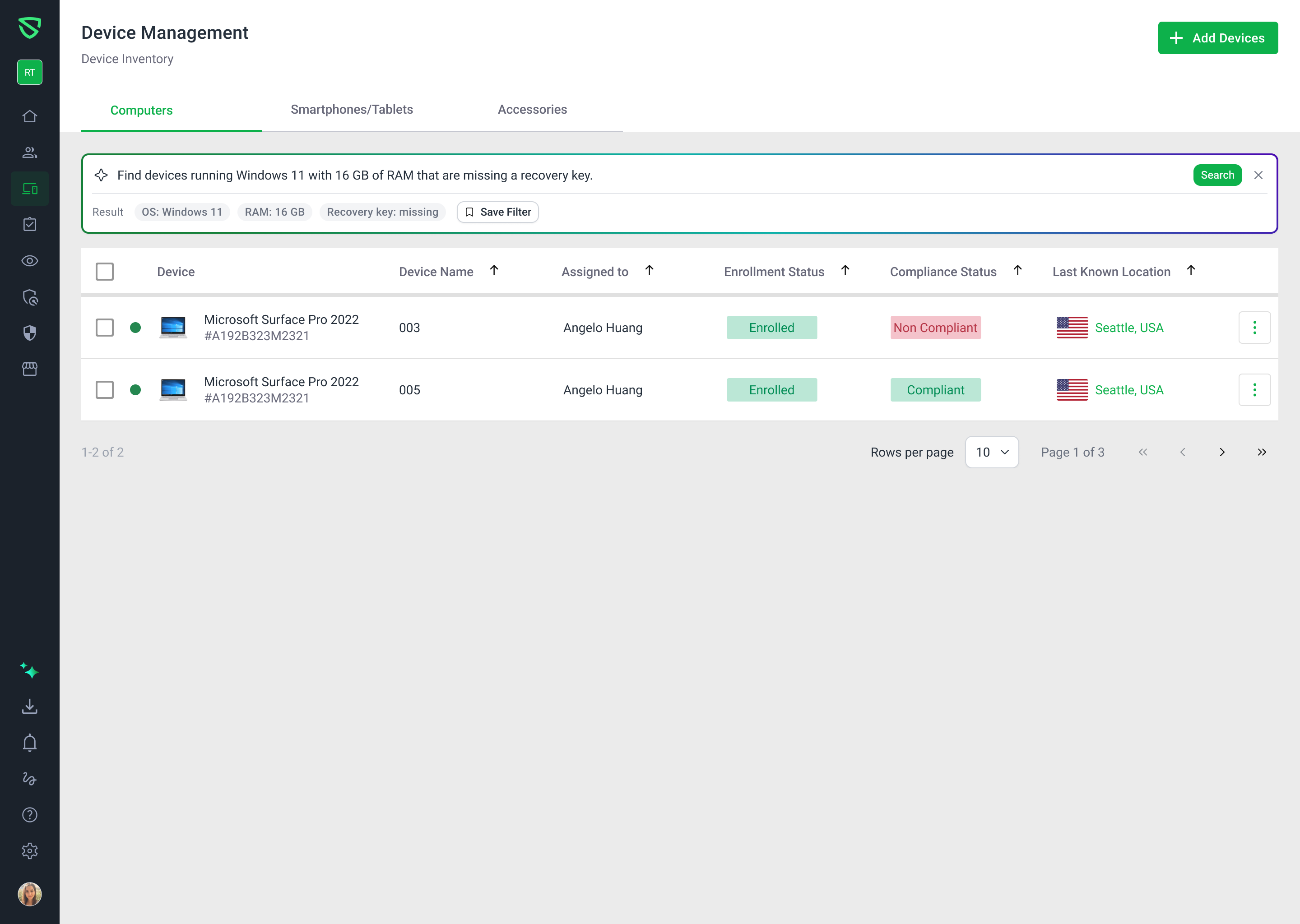
  • Natural Language Querying: Ask plain-English questions like "Find Windows 11 devices with 16 GB RAM missing recovery keys" to instantly filter results.

  • Structured Criteria Parsing: Your queries are automatically converted into clear, visual filter tags.

  • Suggested Prompts: Jumpstart your search using pre-built prompt chips, or refine your queries with intelligent prompt suggestions.

2. Reusable Saved Filters & Management

Standardize recurring audit views across your entire workspace:

  • Save Searches Instantly: Turn any manual or AI-generated search into a named, reusable filter view.

  • Filter Combining: Layer ad-hoc manual filters on top of saved filter presets.

  • Active View Summary: View applied filter tags at a glance with full criteria details available on hover.

  • Safety Undo: Restored accidental filter deletions with an immediate 10-minute undo window.

3. Deep CPU & GPU Hardware Telemetry

Gain granular visibility into device specifications across macOS, Windows, and Linux endpoints:

  • CPU Telemetry: Filter and report by architecture (e.g., ARM64, x86_64), processor model, physical cores, logical cores, base clock speeds, and cache sizes.

  • GPU Telemetry: Identify device models by GPU vendor, dedicated VRAM, shared VRAM, and GPU core counts.

  • Hardware Auditing: Directly include deep hardware metrics in custom inventory exports and reports.

4. Disk Encryption & Missing Recovery Key Auditing

Strengthen your compliance posture with dedicated recovery key tracking:

  • Missing Key Filter: Quickly isolate devices lacking escrowed FileVault or BitLocker recovery keys using one-click manual filters or AI prompts (missing recovery key: true).

  • Targeted Remediation: Immediately trigger re-escrow policies or dispatch user notifications to unblock compliance audits.

For complete step-by-step instructions and best practices, check out the Help Center Guide.

New

New Integration: Secureframe Continuous Compliance Sync

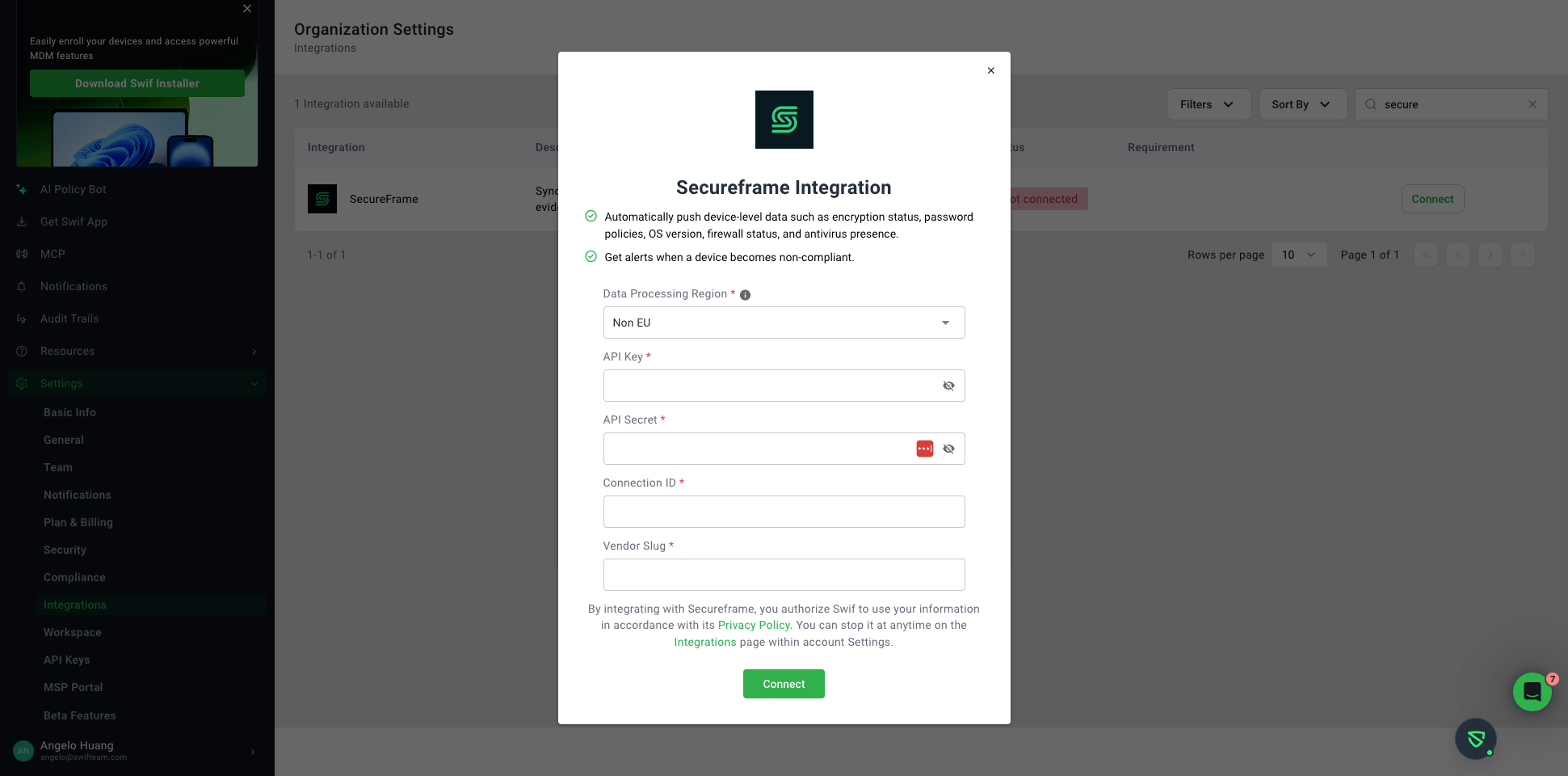
We are pleased to introduce our native Secureframe Integration in the Swif Web App! You can now seamlessly connect Swif MDM to Secureframe to automate compliance evidence collection, streamline audit readiness, and keep your device fleet continuously synchronized.

What’s New

Automated Device Inventory & Evidence Sync

  • Hardware & Asset Inventory: Automatically pushes hardware specs, serial numbers, device models, OS versions, CPU, memory, and MAC addresses to your Secureframe asset registry.

  • Continuous Security Controls Verification: Syncs real-time security postures and compliance evidence directly to Secureframe controls, including:

    • Disk Encryption: FileVault (macOS) and BitLocker (Windows) status.

    • Antivirus & EDR: Active verification for endpoint security tools (e.g., CrowdStrike Falcon, XProtect).

    • Screen Lock & Session Timeouts: Inactivity lock screen policies.

    • OS Auto-Updates & Local Firewall: Patch management and firewall enforcement status.

    • Password Manager: Verification of installed security extensions.

Intuitive Setup & Management

  • Self-Service Connection: Configure the integration directly under Settings → Integrations → Secureframe using your Secureframe API credentials, Custom Connection ID, and region settings (US / EU).

  • On-Demand Manual Sync: Trigger immediate fleet-wide synchronization via the "Sync Now" button anytime you need up-to-the-minute evidence reflected in your audit dashboard.

  • Device-Level Sync Visibility: View integration status, sync health, and timestamps directly on individual device detail pages.

Getting Started

  1. Generate an API Key and Secret in your Secureframe Console (Company Settings → API Keys).

  2. Create a Custom Connection for Swif MDM under Monitoring → Integrations.

  3. In Swif MDM, navigate to Settings → Integrations → Secureframe, enter your credentials, and click Connect.

For step-by-step instructions and troubleshooting tips, check out our How to Connect Secureframe with Swif MDM Guide.

New

Earlier updates