A New MCP Hub: Connect Claude, ChatGPT, Claude Code, and Codex to Swif
Release Date: November 2, 2026
Category: AI & Integrations
The MCP page in the Swif console has been redesigned. Every way to use Swif with AI assistants and coding agents is now in one place, grouped by how you'll use it, with a step-by-step guide for each one.
What's New
Everything in One Place
The MCP page now has three sections:
Plugins: ask Claude or ChatGPT about your devices, employees, and apps, in plain language.
MCP Server: connect coding agents, Claude Code and Codex, to check your fleet while you work in the terminal.
CLI: manage Swif from the command line, with the Swif CLI.
Each integration shows what it does, its type, and whether it's connected.
Guided Setup for Each Integration
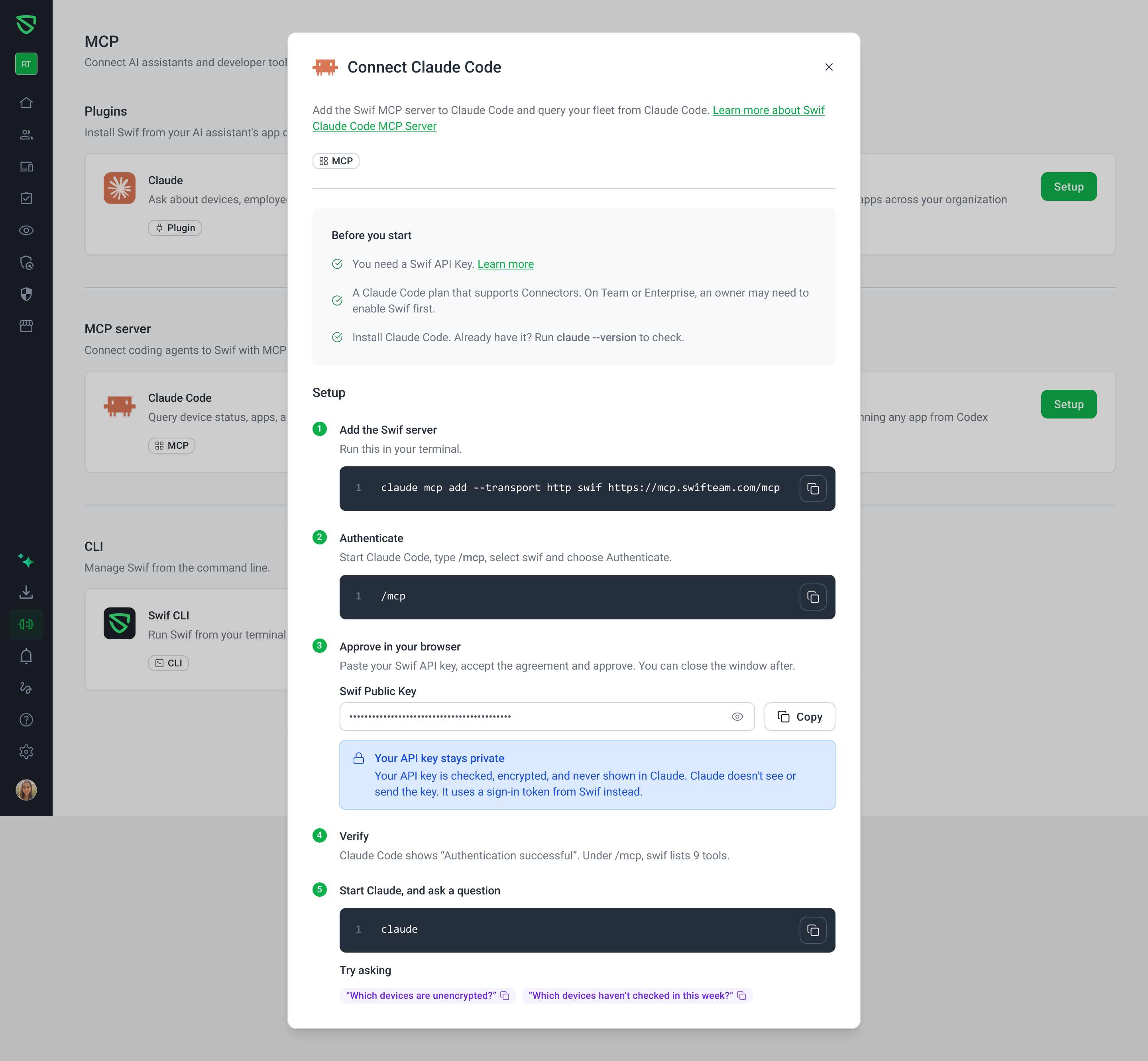
Click Setup on any integration for a step-by-step guide:
Before you start: what you need, such as a Swif API key, and the right Claude or ChatGPT plan.
Copy-ready commands: copy each terminal command with one click.
Your API key, right there: your Swif API key is shown in the guide, hidden until you choose to show it, with a Copy button.
Check it worked: each guide tells you what to look for, such as Authentication successful in Claude Code, or
codex mcp listshowing Swif as enabled.Try asking: sample questions to copy, such as "Which devices are unencrypted?" and "Which devices haven't checked in this week?"
Faster Setup for Plugins
Claude: opens the Claude Directory, so you can add Swif in a few clicks.
ChatGPT: opens the ChatGPT app directory, so you can add the Swif app.
Your API Key Stays Private
Your Swif API key is checked and encrypted by Swif. Claude, ChatGPT, Claude Code, and Codex never see it. They use a sign-in token from Swif instead.
Getting Started
In the Swif console, select MCP in the sidebar.
Find the AI assistant or coding agent you use, and click Setup.
Follow the guide, then try a sample question.
Learn More: