New: Export a Vendor Summary of Your Approved Apps
Release Date: November 16, 2026
Category: Shadow IT & Reporting
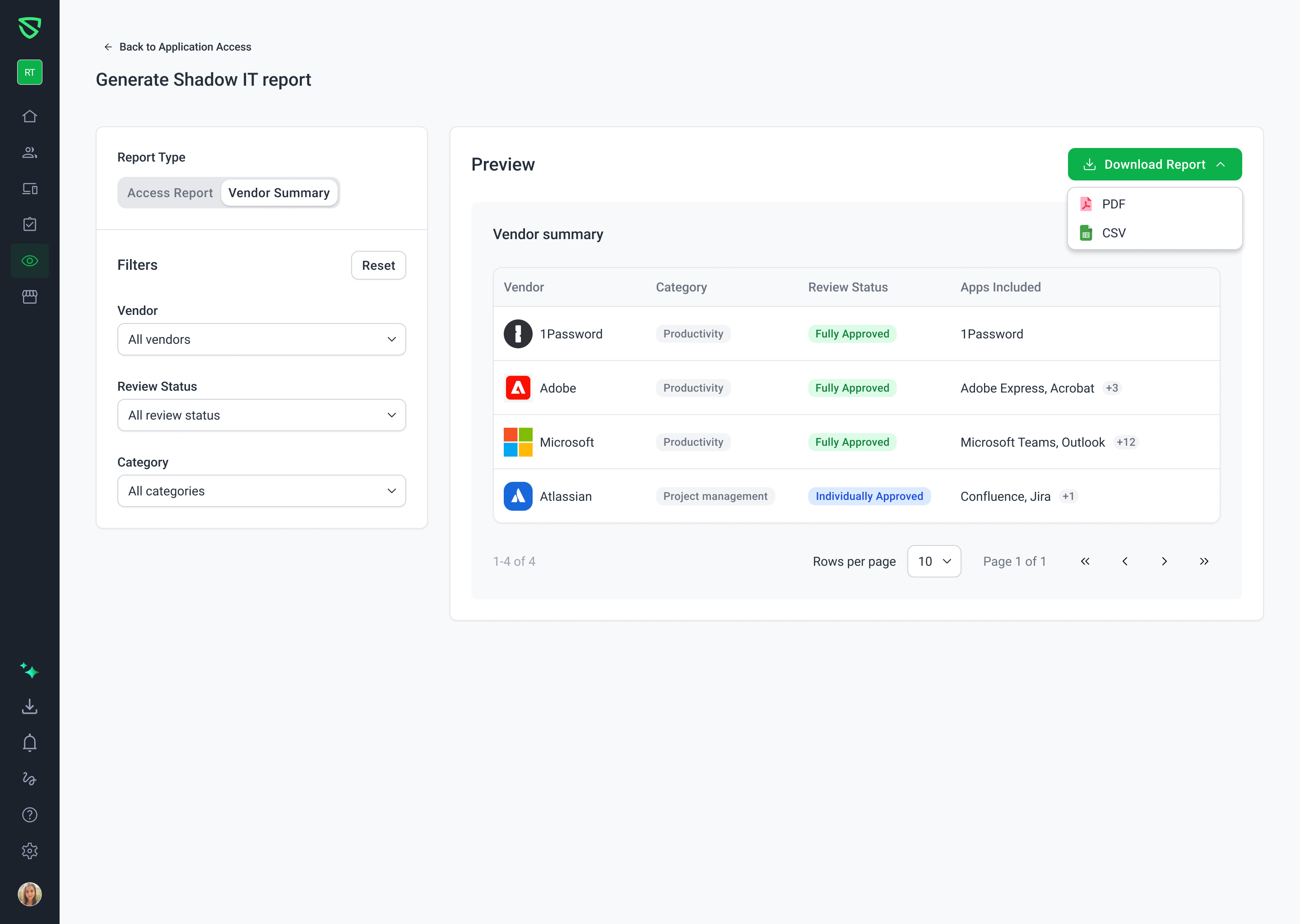
Security reviews, audits, and procurement reviews ask which vendors you've approved, not which individual apps. Now Swif can tell you. The new Vendor Summary report groups your approved apps by vendor, with one row each for Microsoft, Adobe, Atlassian, and so on, and exports it as a CSV or PDF.
What's New
One Row per Vendor
Grouped automatically: Swif groups the approved apps it found on your devices, including installed apps and browser extensions, by vendor. For example, Microsoft Teams, Outlook, and other Microsoft apps appear as one Microsoft row.
Approved apps only: the report includes Fully Approved and Individually Approved apps. Prohibited apps, unmanaged apps, and apps waiting for review are left out.
Every app is traceable: each row lists the apps it includes, so auditors can trace any vendor back to the apps on your devices.
Filter to What You Need
Filter by vendor, category, or review status, such as only fully approved productivity vendors.
Reset clears every filter in one click.
Download as CSV or PDF
Choose CSV or PDF from Download Report.
Your filters apply to the download, which includes every matching vendor, not just the page you're viewing.
Ready for compliance templates: the file includes Risk Level, Spend, and Owner columns, left empty for you to fill in.
Safe to open: CSV values that could run as spreadsheet formulas are protected.
Getting Started
In Swif, go to Shadow IT > Application Access, and click Generate Report.
Under Report Type, select Vendor Summary.
Filter the report, if you need to.
Click Download Report, and choose PDF or CSV.
Learn More: