New: Get Device Logs from the Swif Console
Release Date: November 11, 2026
Category: Device Management
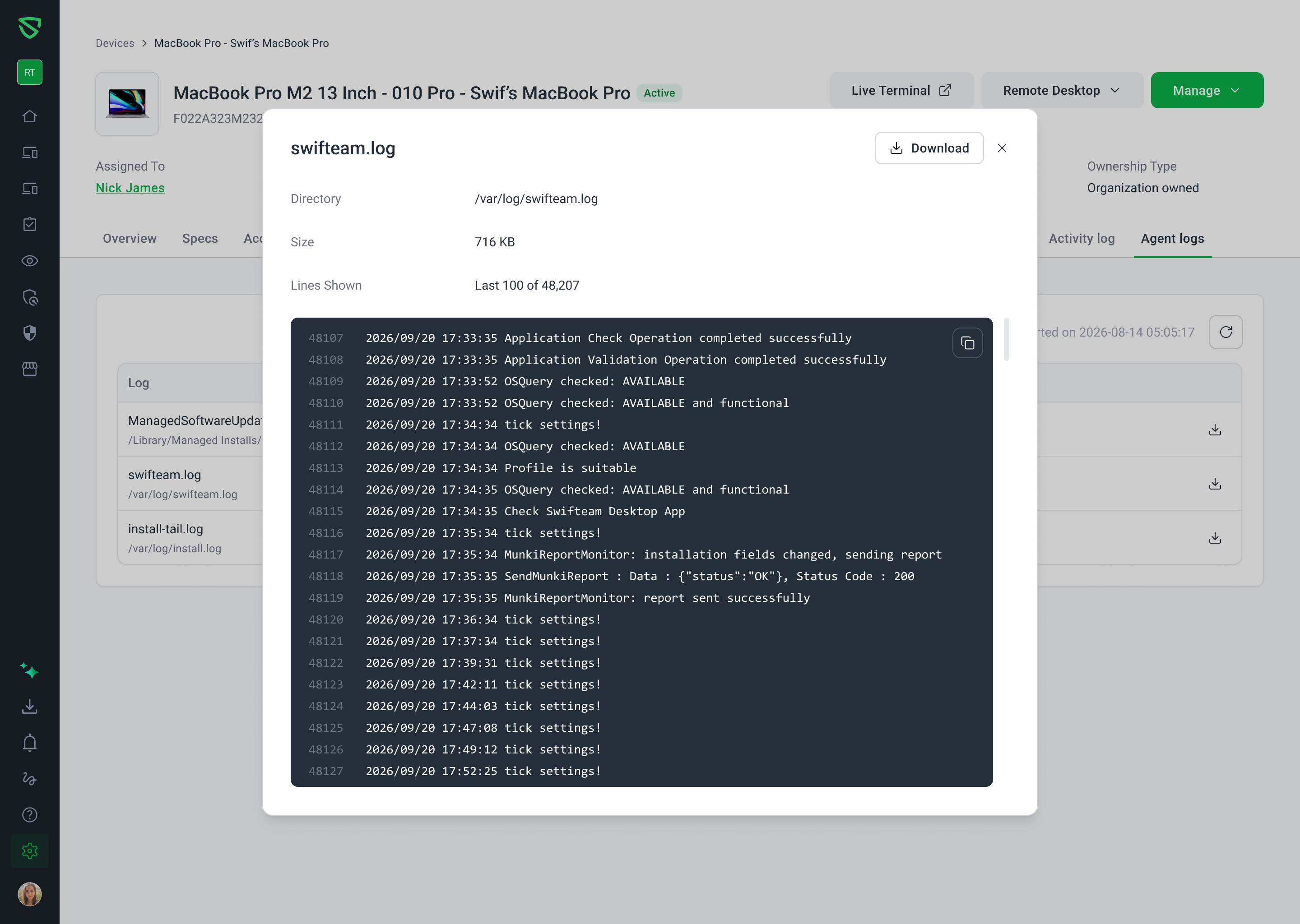
When an app won't install, or a device stops checking in, the answer is usually in its logs. Getting them used to mean asking the user to send files, or running commands on the device. Now you can get a device's logs from the Swif console, with the new Agent logs tab, on macOS, Windows, Linux, and Android.
What's New
A Device's Logs, in One Place
New Agent logs tab: on each device's details page, listing every log, with where it is on the device, and its size.
Download any log with one click, to read it, or send it to Swif support.
Read-only: getting logs doesn't change anything on the device.
The Logs You Need for Troubleshooting
macOS: the Swif agent's logs, app install and update logs, and macOS's own install log
Windows: the Swif agent's logs, and app install logs
Linux: the Swif agent's logs, and package manager logs, from APT, DNF, or Pacman
Android: the Swif app's logs, its system logs, and a history of when the app stopped or restarted. Works on BYOD and company-owned devices.
Fresh Logs When You Need Them
Click refresh to get the device's current logs. Last reported on shows when they were sent.
Devices usually respond within 2 minutes, when they're online. Offline devices send their logs when they next connect.
Getting Started
In Swif, go to Device Management > Device Inventory, and open a device.
Open the Agent logs tab.
Click the refresh button to get the latest logs, then download the ones you need.
Agent logs are available to admins with the Team admin or support role.
Learn More: