New: Configure iPhone and iPad VPP Apps Automatically
Release Date: November 16, 2026
Category: Apple Device Management
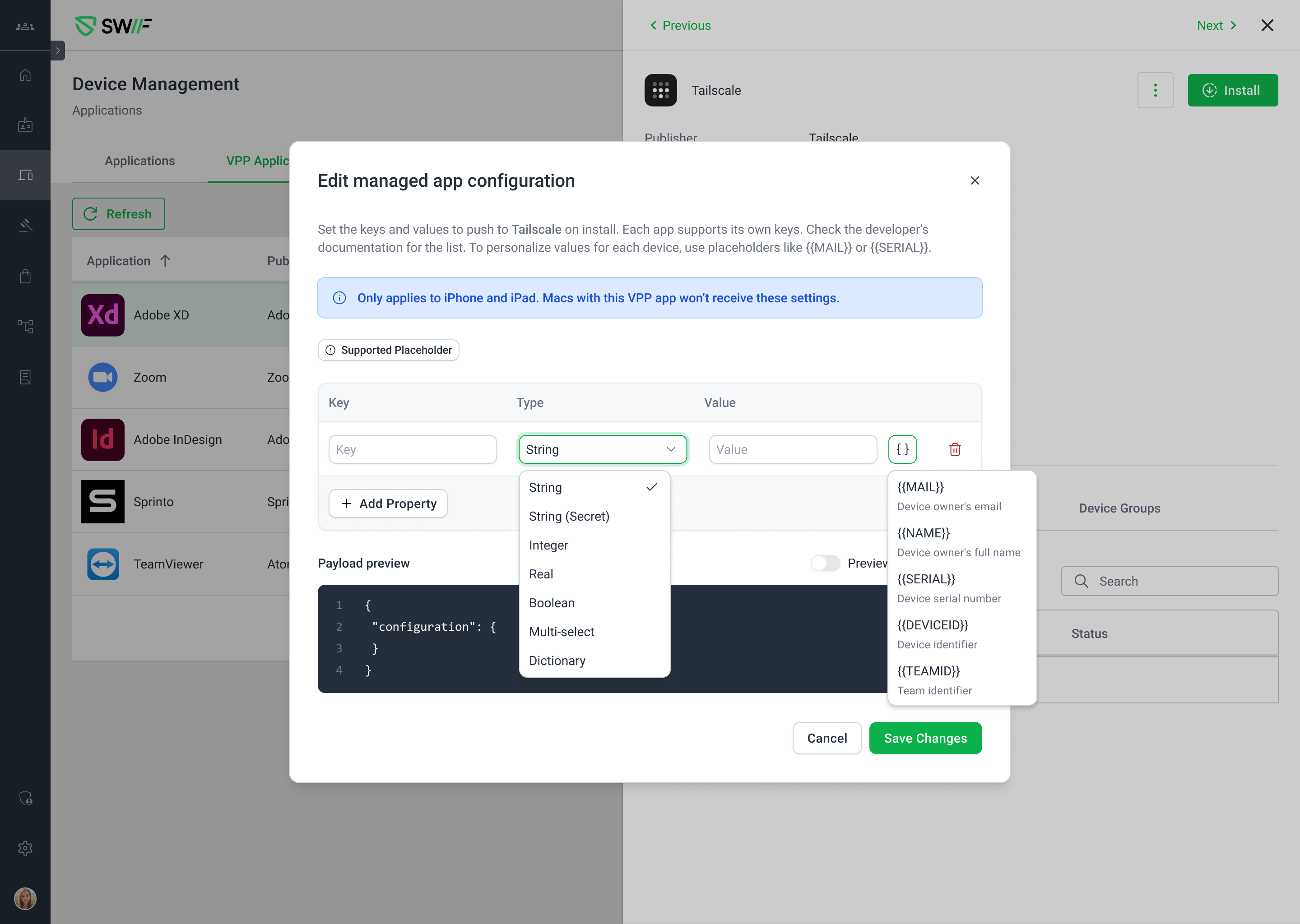
Setting up apps on every iPhone and iPad by hand takes time, and is easy to get wrong. Now Swif can send settings to your Apple Business Manager apps, with managed app configuration, so apps arrive ready to use. Settings like a server address, an organization ID, or a sign-in key are filled in for you.
What's New
Settings Sent with the VPP App
Configure any VPP app that supports managed app configuration, from its page on the VPP Applications tab.
Sent when the app installs, so it's set up the first time it opens.
Updated in the background: when you change a setting, Swif sends it to every iPhone and iPad that has the app.
Each Device Gets Its Own Values
Placeholders for device and user details: add the device's serial number, its Swif ID, your Team ID, or the owner's name or email to a setting. Swif fills them in for each device.
For example, a hostname of
acme-{{SERIAL}}becomesacme-followed by each iPad's serial number.
Built for Real App Settings
Every value type apps use: String, Integer, Real, Boolean, Multi-select lists, and Dictionaries, nested up to 8 levels.
See before you save: a live preview shows exactly what devices receive. Turn on Preview resolved values to see placeholders filled in.
Removing is clean: remove a setting, or the whole configuration, and it's removed from devices too.
Getting Started
In Swif, go to Device Management > Applications, open the VPP Applications tab, and click an app.
In Managed app configuration, click Edit Configuration.
Click Add Property, and add the settings from the app's documentation.
Click Save Changes.
Managed app configuration works on iPhone and iPad. Each app decides which settings it accepts, so check its documentation for managed app configuration, sometimes called AppConfig.
Learn More: