Manage Linux Groups from the Swif Console
Release Date: November 9, 2026
Category: Linux Device Management
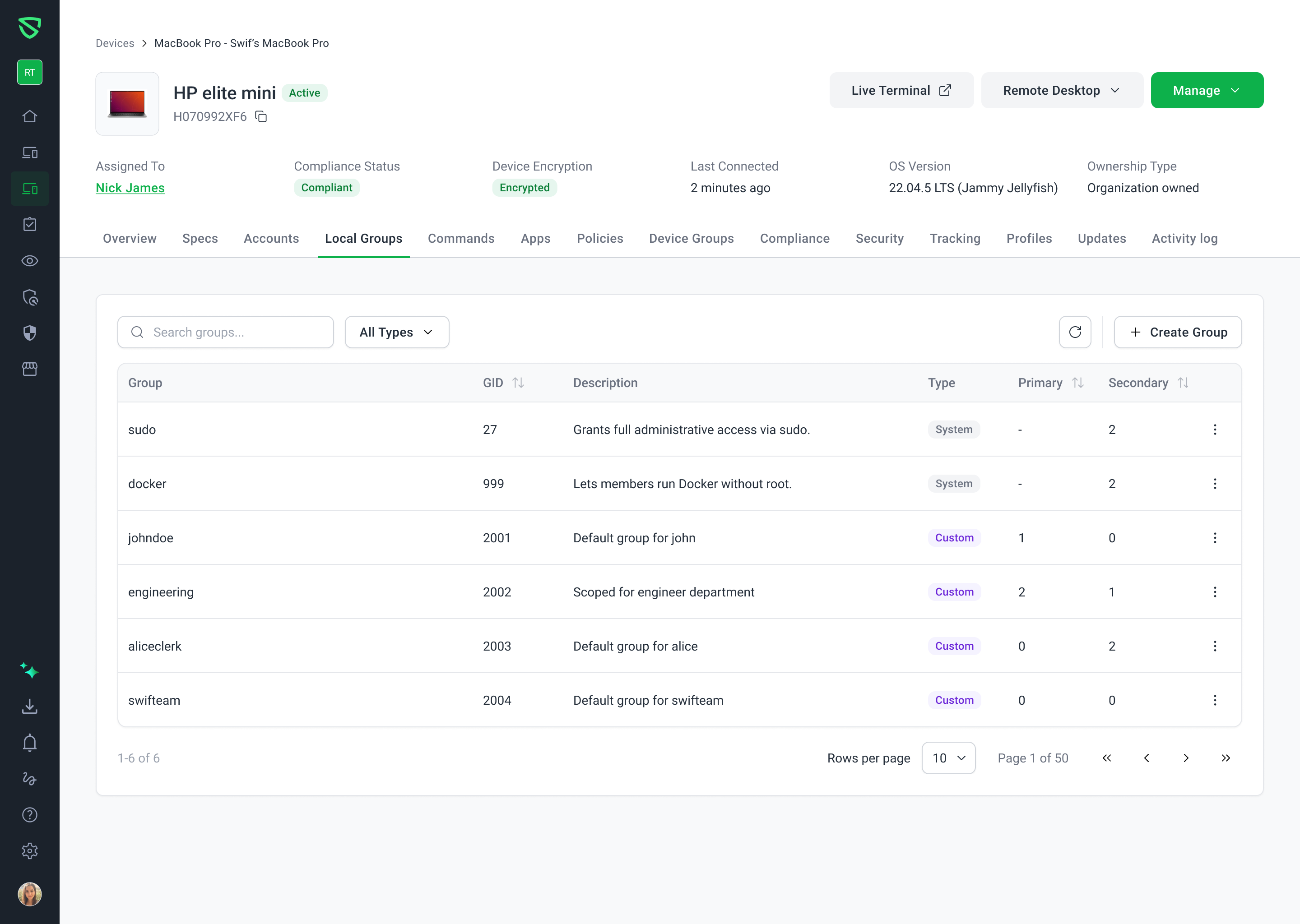
Managing who belongs to which group on a Linux device used to mean signing in to it as root. Now you can see, create, and change a Linux device's local groups and their members from the Swif console, with the new Local Groups tab.
What's New
See Every Group on a Device
New Local Groups tab: on each Linux device's details page, between Accounts and Commands.
System and custom groups: groups from the operating system and its packages, such as
sudoanddocker, are labeled System. The groups you create are Custom.Filter and refresh: show system groups, custom groups, or both, and refresh to get the latest from the device.
Create and Rename Groups
Create a group with a name. The device assigns the group ID, so it never clashes with an existing one.
Name check: Swif checks names before you save, using lowercase letters, numbers, and hyphens, starting with a letter.
Rename custom groups. System groups are protected, and can't be renamed or deleted.
Manage Members
See who's in a group, labeled Primary or Secondary, with a filter.
Add members: choose local users on the device. They're added without changing their other groups.
Remove members you added. A user's primary group stays, since every Linux user needs one.
Safe Deletion
Clear warnings: Swif tells you how many members will be removed before you delete a group.
Protected primary groups: groups that are still a user's primary group can't be deleted. View Members shows which users.
Queued, Not Instant
Applied at check-in: each change is sent to the device, and applied when it checks in. A notification confirms the change is queued, and the table updates once the device reports back.
Getting Started
In Swif, go to Devices, and open a Linux device.
Open the Local Groups tab.
Click Create Group, or click a group to manage its members.
Learn More: