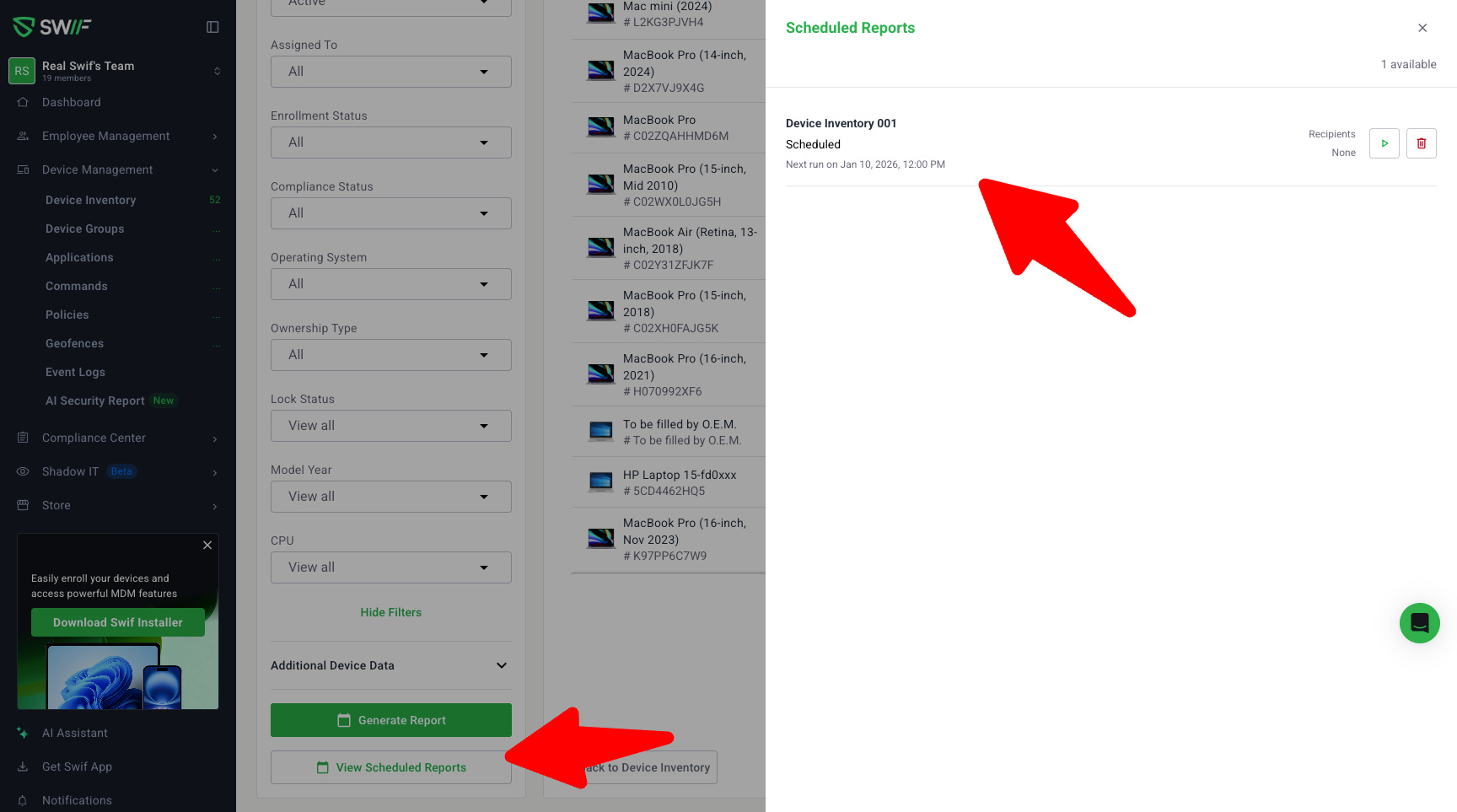
Scheduled Reports side panel (View, Load, Delete)
Where:
Devices → Download Reports → View Scheduled Reports
Employees → Download / Generate Reports → View Scheduled Reports
(Design reference: “Download Reports 1.1.6 [Scheduled Reports]” – backed by ST-6143)
View Scheduled Reports
A side panel shows all scheduled reports for the current context (Devices or Employees).
Each scheduled configuration appears once; UI no longer shows duplicate entries.
Load a scheduled report
Clicking Load report on any entry:
Restores the saved configuration:
Filters
Recipients (email / Slack)
Cadence / duration where applicable
Regenerates data or lets the user re-run Generate Report / Download Report with the same parameters.
Fixes the previous behavior where “Load report” could fail or not download as expected.
Delete (Unsubscribe) a scheduled report
Each scheduled report row offers a Delete action (no edit).
No Edit flow (by design)
The Scheduled Reports panel supports View/Load and Delete only.
There is no “Edit” flow for an existing schedule.
To change a schedule, users should create a new scheduled report with updated settings.
System-wide consistency
The Employee Management scheduled reporting UI and behavior now fully mirror Device Inventory:
Same labels and CTA text (Generate Report, Share, Share & Schedule).
Same validation and enable/disable rules.
Same Scheduled Reports side panel behavior for view, load, and delete.
This prepares Swif.ai to reuse the same reporting UX wherever Schedule Report is available across the platform.