Changelog

Follow new updates and improvements to Swif.ai.

February 27th, 2026

New

You can now control “Block sign-up” on a per‑application basis for Shadow IT apps directly in the Swif.ai web app.

What’s new

  • Added a “Block sign-up for this app” toggle in the Shadow IT → App detail / consolidated blocking view for each Shadow IT application. You can find the same toggle at the consolidated blocking view at Device details, Groups, or the software page.

  • The control is scoped at the domains (not global/team), so you can align blocking behavior with the specific risk profile of each domain. The control can then be assigned to devices or groups to be effective.

  • Added basic analytics/telemetry for:

    • Viewing the “Block sign-up” control.

    • Toggling it on/off.

Behavior & precedence

  • This blocklist control is scoped to the domains you uploaded, not the entire team or tenant. The blocklist can then be assigned to devices or groups to be effective.

  • When enabled:

    • New sign‑ups to those specific domains are blocked according to Swif’s standard enforcement (for example, via the browser extension on managed devices).

  • When disabled:

    • Sign‑up behavior control will be removed.

Docs

February 27th, 2026

New

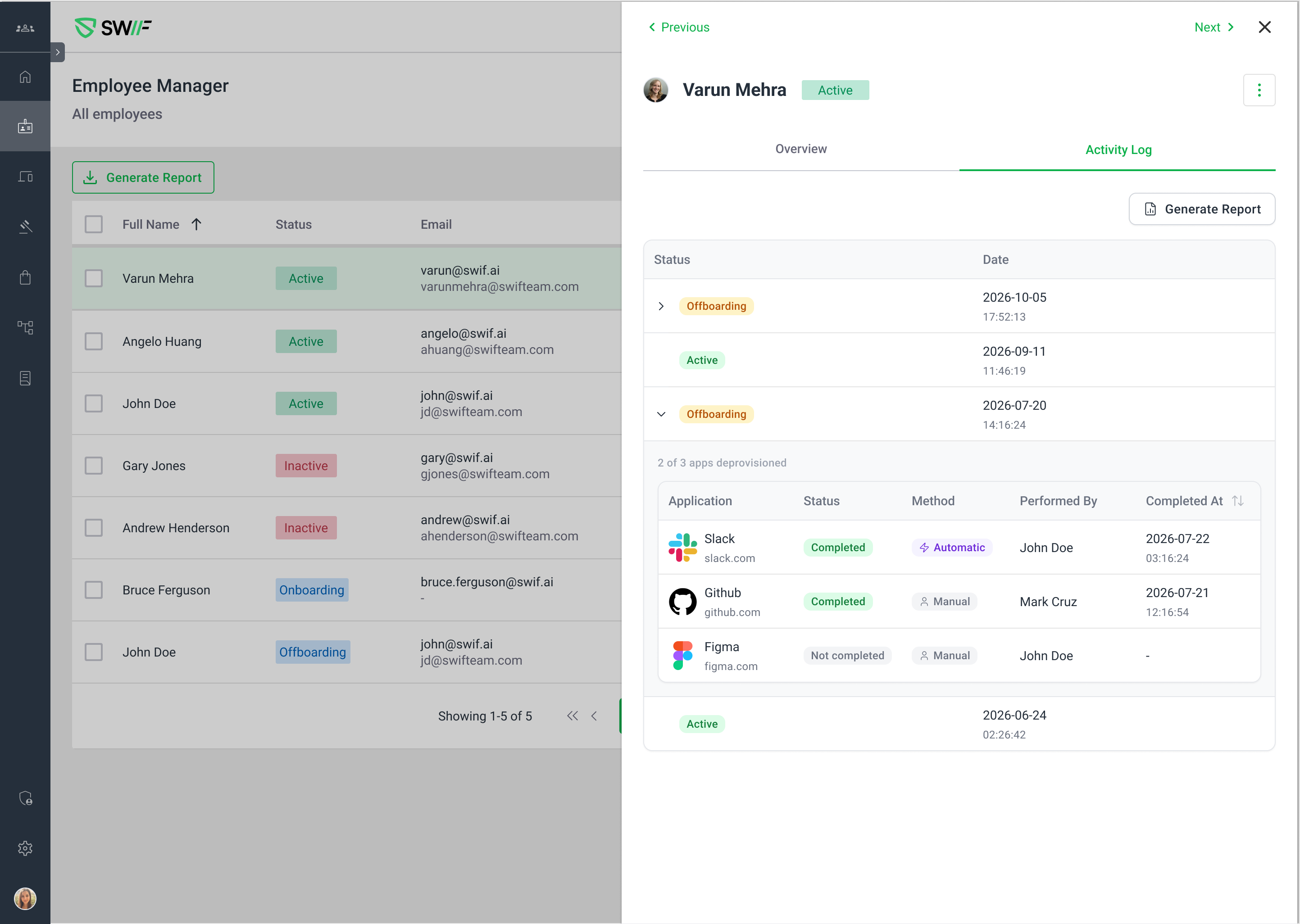
We’ve upgraded the Device Details → Activities tab to make audit and review work much easier:

  • New Status column

    • Every activity log now has a clear status: Unreviewed, Reviewed, or Archived.

    • By default, the list shows Unreviewed + Reviewed events so you can focus on what matters now.

  • Review workflow actions

    • From each row’s action menu you can:

      • Mark as Reviewed

      • Mark as Unreviewed

      • Archive Log

      • Add Note

    • Reviewed items show a tooltip like: “Reviewed at YYYY-MM-DD by Jane Doe” so you always know who acknowledged an event and when.

  • Archiving and dedicated Archived view

    • You can now archive (soft‑delete) log entries you no longer need in the main view.

    • Archived events are hidden from the default list but can be viewed by filtering to Archived status.

    • Archived items are read‑only and clearly indicated in the table, preserving your audit trail without clutter.

  • Better filtering and sorting

    • Filter by any combination of Unreviewed / Reviewed / Archived to slice activity history the way you need.

    • Activity logs are sorted by their created date, matching the timestamp shown in the UI, so the timeline is consistent and predictable across edits.

  • Refined layout and UX polish

    • The “Performed by” label now appears directly under each activity entry for quicker scanning.

    • Empty, loading, and error states are clarified so it’s obvious whether you’re waiting on data, have nothing to review, or need to retry an action.

To learn how to use these features in detail, see:
Managing Activity Logs and Notes on a Device | Help Center | Swif.ai


February 27th, 2026

New

We’ve added a new Automated actions experience to geofencing so you can define what should happen when devices enter or leave a geofenced area.

What’s new

  • New “Automated actions” step in the Create Geofence flow

    • Appears after the geofence definition steps.

    • Includes a read‑only “Geofence context” panel that shows which locations and devices/device groups the geofence applies to.

  • Configurable post‑actions per geofence

    • Add, edit, and delete actions in an Actions list:

      • Notification

      • Lock device

    • Actions are only available when the geofence targets at least one device or device group.

  • Default notification, old trigger removed

    • The old “Notification trigger” checkbox has been removed from the Basic configuration step.

    • New geofences now include a default Notification automated action in the Automated actions step, which you can modify or remove.

  • Action‑level trigger events

    • Trigger events are configured per action (not at geofence level):

      • Notification: On Entry, On Exit, or On Entry & Exit

      • Lock device: On Entry or On Exit (no combined entry & exit option)

    • You can have only one Notification action per geofence.

    • You can have at most two actions total per geofence (one Notification + one Lock device); once both exist, the Add action button is disabled.

  • Add / Edit Action modal

    • A new Add action button opens a modal to configure:

      • Action type (Notification or Lock device)

      • Trigger event

      • Any action‑specific fields (e.g., lock message)

    • The same modal is used for editing existing actions (fields are pre‑populated).

    • Policy assignment has been moved out and is tracked separately (ST‑6965), so it does not appear as an action type.

  • Review & View experiences

    • The Create Geofence Review step now includes an Automated actions section summarizing each action (type, trigger event, key details) in a read‑only view.

    • The View Geofence side panel has been extended to show an Automated actions summary, matching existing panel patterns. This view is read‑only—no add/edit/delete from here.

Platform support

  • Available for macOS, Windows, and Linux devices, aligned with your existing geofencing and device lock capabilities.

For configuration details and examples, see:
Configure automated actions for geofencing (notifications and device lock) | Help Center | Swif.ai

February 25th, 2026

New

We’ve redesigned the Shadow IT Insights Dashboard to make AI and Shadow IT activity clearer and easier to understand.

What’s new

  • Updated Overview KPIs

    • KPI row now fills the full width with no awkward gaps.

    • Each KPI shows a trend percentage (e.g. +12%, -3%) instead of icons.

    • KPI widgets align with the new 1.0.1 design from our updated design system.

  • Discovery & App Status

    • Discovery & App Status now uses a donut chart built on our new Shadcn-based charting system.

    • Newly Discovered Apps is now a bar chart that aligns with the global time range filter and dashboard styling.

  • AI Adoption & Usage (LLM usage)

    • New stacked bar chart for LLM Adoption by Users, breaking down usage across different LLM providers.

    • New widget: “LLM Adoption by Tools”

      • Mixed bar chart showing total LLM requests by tool/provider for the selected time range.

      • On hover, tooltips include the top 3 users by request volume for each tool (currently wired for live or placeholder data depending on backend readiness).

  • Risk & Exceptions

    • New card list for:

      • Individually Approved Apps with Unauthorized Activity

      • (PII-related cards are scaffolded but will ship later with the broader PII feature set.)

    • Card lists support loading, empty, and error states consistent with the rest of the dashboard.

Under the hood

  • All new charts and cards leverage our Shadcn-based design system for consistent layout, typography, colors, and components.

  • Widgets respect the global time range filter so you can analyze trends for any selected window.

February 14th, 2026

New

We’ve added a new IT onboarding experience to the Swif Desktop App so new hires can see and complete their onboarding checklist without signing into Swif.

What’s new

  • Onboarding Checklist page in the desktop app

    • New “Onboarding Checklist” page for employees, based on the latest designs.

    • Checklist items, grouping, and labels are fully driven by your Employee Checklist Templates.

  • No-login employee experience

    • New hires can access and complete their onboarding checklist without logging into Swif.

    • The app uses a secure, device-serial–based token flow for all checklist API calls in this mode.

  • Real-time progress & auto-hide behavior

    • Employees can mark items as completed directly from the desktop app.

    • Completion state is persisted to the backend so admins see accurate progress.

    • When all tasks are done, the Onboarding Checklist page is automatically hidden and the user is redirected back to the Overview page.

    • If there are no pending tasks (empty or all completed), the checklist page will not appear.

  • Template-driven mandatory tasks

    • Mandatory tasks are honored from your configured templates (e.g., Swif MDM templates).

    • No hardcoded mandatory items — everything comes from backend/template configuration.

Technical notes

  • Implements device-serial–based token auth for checklist APIs in the desktop app.

  • Available in Swif Desktop App build 1.0.155+1 for:

    • macOS

    • Windows

    • Linux x86

    • Linux ARM64

Docs

February 11th, 2026

New

We’ve added support for adhoc Windows OS updates directly from a single device, similar to our existing macOS flow.

What’s new

1. “Update OS” action on Windows device pages

  • On a Windows device’s detail page, there is now an “Update OS” / “Schedule OS update” action in the device actions menu.

  • Clicking it opens a Windows OS Update modal that:

    • Lists available Windows updates from the device (e.g., feature updates like Windows 11 24H2, Defender signature updates, etc.).

    • Shows key details per update: human‑readable name, version/build (when available), download size, release date, and status.

    • Lets you select exactly one update and schedule it for that device.

  • When you confirm, Swif sends a schedule request for that specific update and treats “installation initiated” as success.

Learn more:
Adhoc Windows OS updates | Help Center | Swif.ai
(For parity with macOS behavior, also see: Adhoc OS Updates for Apple Devices | Help Center | Swif.ai


2. Per‑update actions on the Device → Updates tab (Windows)

  • On a Windows device’s Updates tab, each Windows OS update row now includes a contextual action (for example, “Install this update”).

  • Clicking this action:

    • Schedules that specific update on that specific device (no bulk / “Update all” behavior).

    • Uses the same backend scheduling flow as the Device page modal.

This makes it easy to trigger a one‑off installation for a specific Defender or OS update you see in the list.


3. Safer & clearer scheduling behavior

  • Scheduling is strictly per device + per update:

    • No multi‑device bulk updates from this flow.

    • No device‑group scheduling UI in this release.

  • The UI:

    • Shows a clear success notification when a schedule request is accepted.

    • Surfaces backend error messages (for example, insufficient disk space, or Defender updates that are already being handled by Windows) in a toast and/or inline detail.

    • Avoids permanent loading spinners with sensible client‑side timeouts.

    • Refreshes the device’s available updates/status so that:

      • Completed updates may disappear from the “available” list, or

      • Their status is updated based on the latest device data.

February 11th, 2026

New

We’ve added automation to help IT teams onboard new employees without manually triggering Swif enrollment emails.

What’s new

  • Auto‑send device enrollment emails from onboarding templates

    • In Onboarding → Templates, admins can now enable “Send automatically” for the employee‑facing device enrollment email.

    • When enabled, Swif will automatically send the selected enrollment email(s) to new hires as soon as they are imported or added from supported sources (e.g., HRIS / IdP sync, manual user creation, etc.), based on the template in scope.

  • Choose which enrollment email(s) to auto‑send

    • Within the template’s Device Enrollment Email section, admins can choose one or more enrollment methods to send automatically:

      • Application Installer

      • Apple Enrollment SSO

      • QR Code

      • NixOS package

      • Universal Blue (Bluefin) package

  • Works with automatic user sync

    • This feature is designed to work with upcoming/related auto‑sync capabilities for directories and HRIS providers (for example: Google Workspace, Okta, Azure AD, Deel, or Finch).

    • When a new hire appears in Swif via sync or is created in the app and falls under a template with auto‑send enabled, Swif will take care of sending the configured enrollment email(s), without requiring any manual action from IT.

Why it matters

  • Removes the need to log into Swif and invite each new employee one‑by‑one.

  • Ensures every new hire receives the correct device enrollment instructions automatically, aligned with your onboarding template.

  • Reduces onboarding delays and mistakes caused by manual email triggers.

How to use it

  1. Go to Onboarding → Templates.

  2. Edit or create an employee‑facing onboarding template.

  3. In Device Enrollment Email:

    • Turn on “Send automatically”.

    • Select the enrollment method(s) you want to send to new hires.

  4. Save the template. From now on, any new hire in scope of that template will receive the chosen enrollment email(s) automatically.

February 11th, 2026

New

We’ve added NIS2 as a first-class framework snapshot in the Compliance Center so you can quickly understand how your device and asset posture maps to NIS2 Article 21 requirements.

What’s new

  • NIS2 framework card in Compliance Center

    • New NIS2 card appears in the Framework Snapshot row alongside other frameworks.

    • Shows:

      • Overall NIS2 compliance score (0–100%).

      • Status badge using the same thresholds as other frameworks:

        • On track: 80–100%

        • Need attention: 50–79%

        • At risk: 1–49%

        • Not started: 0%

      • Issue indicators by severity (Critical, High, No Issues), reusing existing icons and colors.

    • Fully compatible with the new horizontal scroll/overflow behavior for framework cards.

  • NIS2 details panel

    • Clicking the NIS2 card opens a details panel with:

      • Overall NIS2 score and status badge.

      • At least 3–4 key NIS2 categories with their individual scores, such as:

        • Access Control & Asset Management (Art. 21(2)(i), (j))

        • Cryptography / Encryption (Art. 21(2)(h))

        • Vulnerability Handling & Secure Maintenance (Art. 21(2)(e))

        • Basic Cyber Hygiene / Endpoint Protection (Art. 21(2)(g))

        • Data Handling & Media Controls (device-level)

        • Asset Lifecycle Controls (Decommission / Disposal)

      • An Issues section listing top device/asset-related NIS2 gaps, for example:

        • Devices missing critical security controls (e.g., unsupported OS, missing EDR).

        • Devices without full inventory/ownership data.

        • Devices lacking encryption or screen lock.

  • No-issue state for NIS2

    • When there are no NIS2 gaps, the NIS2 details panel shows a “No issues found for NIS2” view, using the same empty-state styling as other frameworks and reinforcing continuous monitoring.

  • Handling of manual controls

    • NIS2 categories that are MANUAL-only (for example, Asset Lifecycle Controls (Decommission / Disposal) with control OFF-1) are:

      • Shown as “Not Supported” instead of “At Risk”.

      • Excluded from NIS2 score calculations, so they do not drag your score down for controls that cannot be automatically validated.

  • Controls with no matching devices

    • Non-manual controls that are in scope but have 0 matching devices (e.g., Linux-only control when the org has only macOS/Windows) still appear, but:

      • All related stats show 0 (0 devices / 0 compliant).

      • They do not break the UI and are not treated as compliant by default.

  • NIS2 placeholder card when not enabled

    • If NIS2 is not enabled in your Compliance Scope:

      • The active NIS2 snapshot card is hidden.

      • A placeholder NIS2 card appears after all active frameworks with a clear CTA to enable NIS2 in settings.

    • This follows the same layout and behavior as other framework placeholders.

How to enable

  1. Go to Compliance settings → Framework Scope.

  2. Select NIS2.

  3. Open Compliance Center → Framework Snapshot to see the NIS2 card and details.

February 11th, 2026

New

We’ve launched a new first-time experience (FTUX) to help new admins get Swif.ai configured faster and with less guesswork.

What’s new

  • Onboarding Questionnaire (Steps 1–3)
    After signup, new admins are guided through a short questionnaire:

    • Company details – Capture basic org info, including number of employees.

      • If you enter more than 50 employees, you’ll see a new optional setup item to “Set up company sign‑in (SSO)” in the Setup Guide.

    • Compliance – Select the compliance frameworks you care about (SOC 2, ISO 27001, HIPAA, NIST, NIS2, etc.), or choose to request a template.

      • Any supported frameworks you pick are automatically set as your Active Compliance Scope in the Compliance Center.

      • If you choose “Request a Compliance Template” or “Not right now”, we’ll surface a follow‑up step in the Setup Guide so you can finish configuring your scope later.

    • Devices – Tell us which device types you manage (macOS, Windows, Linux, iOS & iPadOS Devices, Android Devices).

      • These selections are used as defaults anywhere you create Smart Device Groups or turn on Recommended Policies, so you don’t have to re‑select OS types every time.

  • Onboarding completion screen
    Once you’ve finished the questionnaire, you’ll see a new Onboarding Complete page and will be taken directly into the Setup Guide on your next login instead of the old FTUX view.

  • New Setup Guide page (your default landing page after onboarding)
    The Setup Guide is now its own page and becomes the default landing page for new admins after onboarding.

    • Recommended steps

      • Prepare Smart Groups – Create Smart Device Groups with your questionnaire OS choices pre‑selected, including iOS & iPadOS and Android.

      • Turn on Recommended Policies – Enable recommended security policies with device types pre‑selected from your questionnaire answers.

      • When you complete all recommended steps, you’ll see a success banner with an option to “Remove this page as default”, which returns your login landing page to the standard app home.

    • Optional steps

      • Optional items (including Shadow IT Discovery, now moved from the old “Get started” block on the homepage) live in a dedicated Optional Steps section.

      • You can either complete an optional step or “Skip for now”—skipped steps still count toward the All Setup Steps Completed state so you can clear your setup checklist intentionally.

    • All steps completed state

      • Once all recommended and optional steps are either completed or skipped, the Setup Guide shows an “All Setup Steps Completed” banner, with the same option to remove it as your default landing page.

February 10th, 2026

We’ve refreshed the Swif agent installer across all three desktop platforms to make device enrollment smoother, clearer, and more consistent.

macOS

  • Simplified step flow

    • Removed the separate “Pre-check” tab and merged it into Basic Information to reduce the number of steps.

  • Improved copy and guidance

    • Updated welcome screen and finish screen text to better explain what’s happening and what users should expect.

    • Shortened and clarified Permissions instructions so users can more quickly grant required access.

  • Clearer MDM setup

    • Renamed the “Installation Instruction” step to “Install MDM profile” to better match what the user is doing.

    • Made the MDM instruction frame scrollable so larger images and content are easier to view.

    • Added an inline banner when an old MDM profile is detected, so users understand why there’s a conflict and what to do.

Linux

  • Guided, Linux-specific flow

    • Updated Introduction copy to clearly explain what the Swif agent does.

    • Added a dedicated Password Permission step to request sudo credentials up front (required on Linux).

  • Better device context and options

    • Updated Basic Information step to:

      • Include BYOD (Bring Your Own Device) selection.

      • Add a Read-Only enrollment option for devices that should not be fully managed.

  • Install and enrollment clarity

    • Refreshed the Ready to Install step with clearer messaging on what will happen next.

    • Shows an inline banner if an old MDM is present, helping prevent confusing failures.

    • Updated the Device enrollment complete screen with clearer success messaging and next steps.

Windows

  • Aligned flow with macOS/Linux

    • Standardized the installer steps: Introduction → Password Permission → Basic Information → Ready to Install → Device enrollment complete.

  • Improved messaging

    • Refined copy in Introduction, Password Permission, and Basic Information to match the new cross-platform tone and to set expectations.

  • Install step enhancements

    • Updated Ready to Install contents for better clarity on what’s being installed.

    • Added an inline banner on the install step when an existing MDM is detected to warn users about potential conflicts.

  • BYOD support

    • Ensured the Device enrollment complete screen supports and reflects BYOD flows consistently.

Behavior & quality improvements

  • The installer:

    • Enrolls macOS, Windows, and Linux devices using the new UI flows.

    • Prevents duplicate mounting of the installer volume (per the earlier Linux mounting issue).