New: See Your Chromebooks in Swif
Release Date: November 17, 2026
Category: Device Management
Chromebooks are now part of your Swif device inventory. Connect your Google Workspace once, and Swif adds the Chromebooks from your Google Admin console, alongside your Macs, Windows, and Linux devices. Nothing to install on the Chromebooks.
What's New
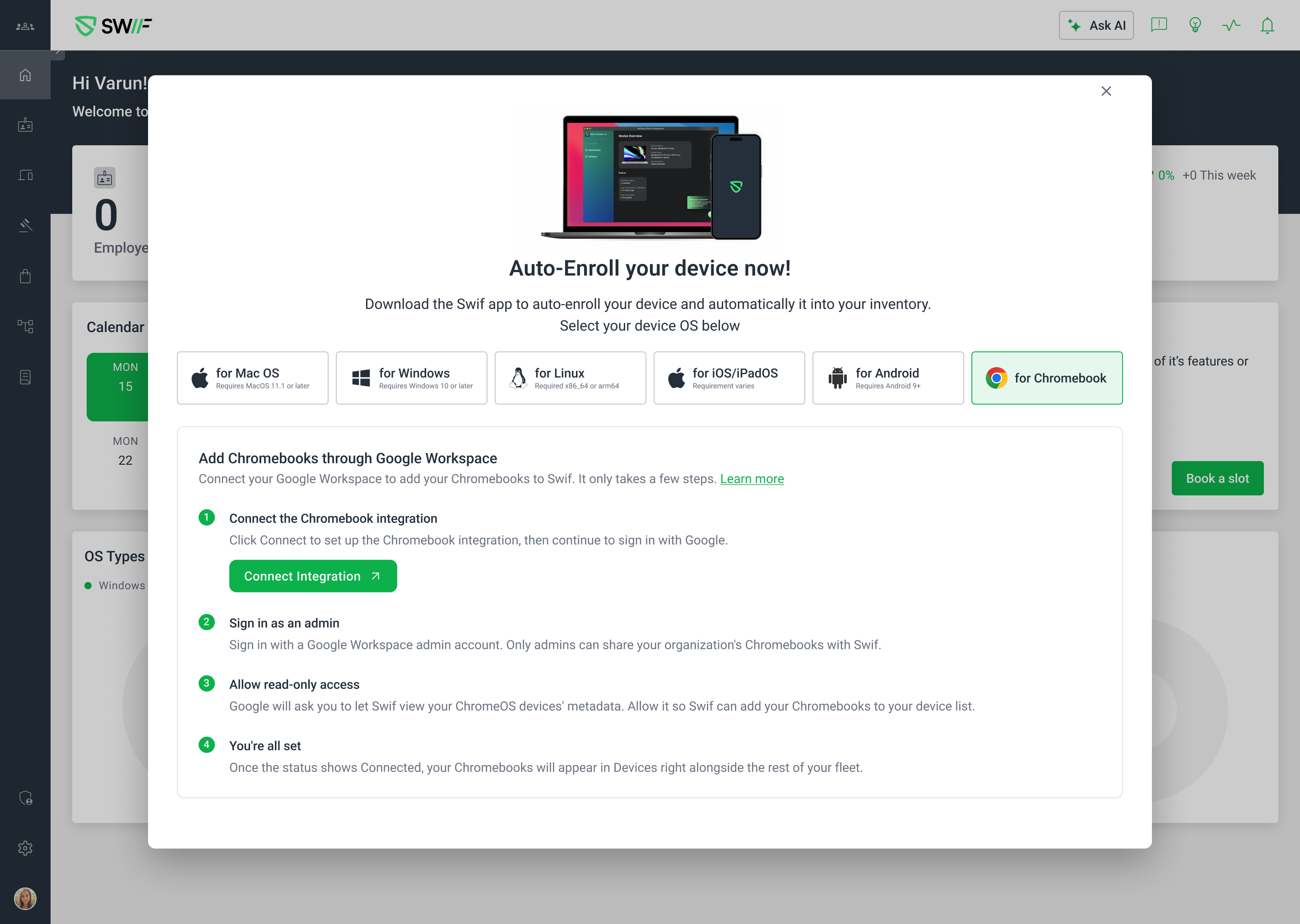
Connect Once, Through Google Workspace
No app to install: Swif reads your Chromebooks from Google Workspace, using read-only access.
Connect from where you are: in Settings > Integrations, in Get Swif App, or in Device Inventory > Add Devices.
Guided setup: four steps walk you through connecting, and show Chromebook Integration Connected when you're done.
Every Device in One Inventory
Chromebooks in Device Inventory, with their serial number, name, and status.
Filter by ChromeOS, on its own, or with other operating systems.
Search by serial number, device name, or the user assigned in Google Admin.
The Details That Matter for Chromebooks
Who's using it: recent users, and how long it was used today.
Where it belongs: its organizational unit in Google Admin, and the notes, location, and asset ID your admins added there.
When it stops getting updates: its support end date, and license details.
Its health: boot mode, ChromeOS version, and firmware.
Good to Know
Read-only: Swif shows your Chromebooks, but doesn't change their settings. Keep using the Google Admin console to manage them, such as restarting, wiping, or updating ChromeOS.
More to come: more Chromebook details, and compliance rules for Chromebooks, are on the way.
Getting Started
In Swif, go to Settings > Integrations, and open Chromebook.
Click Connect, and sign in with your Google Workspace admin account.
Allow read-only access to your ChromeOS devices.
Find your Chromebooks in Device Inventory > Computers.
Learn More: