New: Monitor ChatGPT Desktop, Kilo Code, and OpenCode, with Full Session Details
Release Date: November 16, 2026
Category: Agentic Security
Swif's AI agent activity monitoring now covers three more AI agents: ChatGPT Desktop, Kilo Code, and OpenCode. For every AI agent session, you can now see what was asked, what the agent answered, and which tools it used.
What's New
Three More AI Agents
ChatGPT Desktop: chats and other work in the ChatGPT desktop app, on macOS and Windows. Coding work, in the app's project mode, the Codex command-line tool, or an IDE, is still reported as Codex, so you can tell the two apart.
Kilo Code: as a command-line tool, or as an extension in VS Code or Cursor, on macOS, Windows, and Linux.
OpenCode: versions 1.x and 2.3 or later, on macOS, Windows, and Linux. You can now choose it in the policy.
They join Claude Code, Codex, Cursor, Claude Desktop, Cline, Warp, and Hermes.
See Everything in a Session
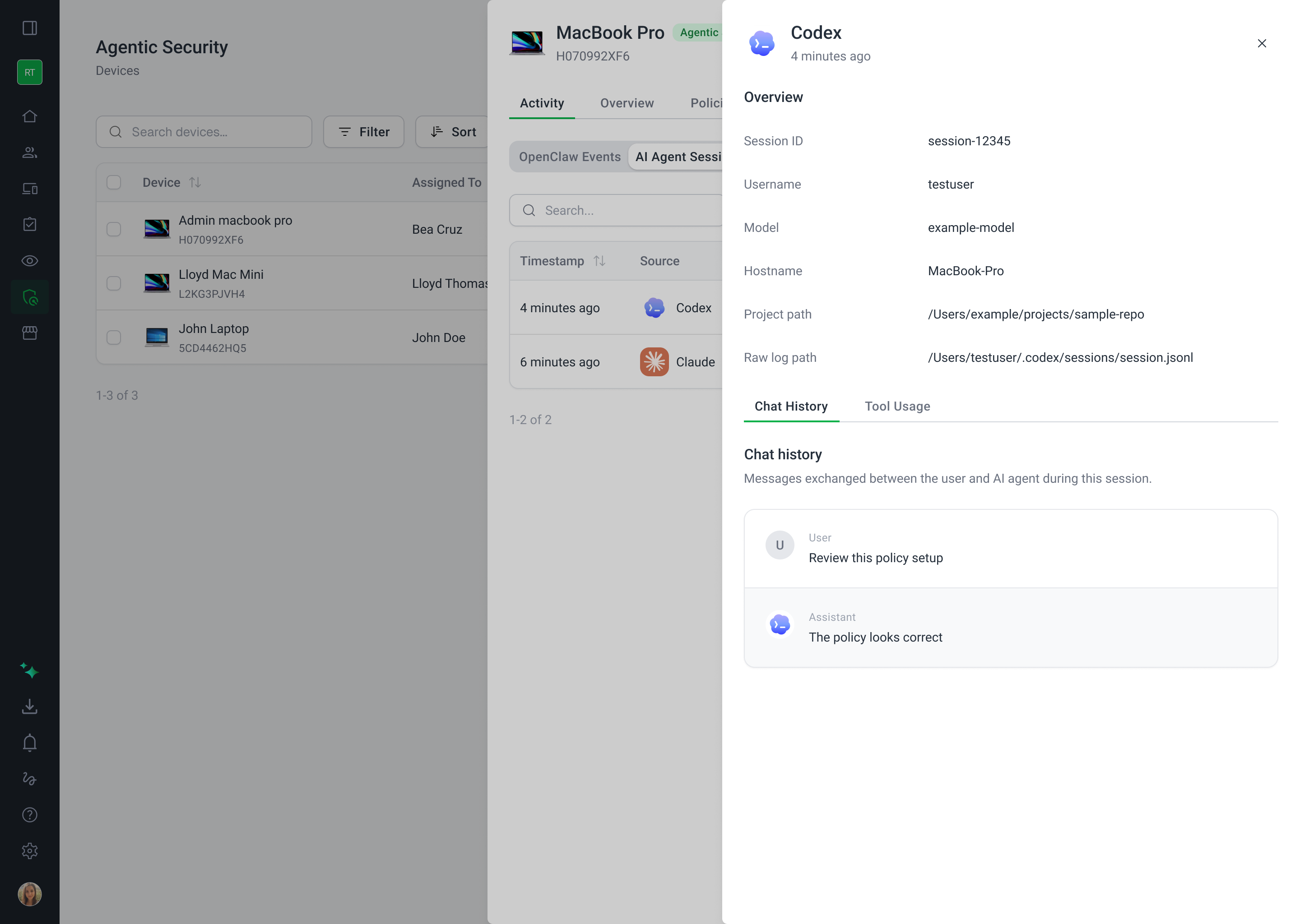
Open a session to see:
Overview: the session ID, user, AI model, device, the project it worked in, and where its log is stored on the device.
Chat History: the messages between the user and the AI agent.
Tool Usage: each tool the agent used, such as shell commands, with what it did, and when.
Control the New Agents
Block ChatGPT Desktop separately from Codex. Allow one, and block the other.
Block Kilo Code, or only some of its tools, such as shell commands, through settings users can't change.
Blocking stays on. If a user removes the settings Swif uses to block an agent, Swif puts them back within a minute, and reports it.
Good to Know
Only the ChatGPT desktop app is monitored. Chats on chatgpt.com, or in the mobile app, aren't recorded.
Some tool details aren't available for ChatGPT Desktop sessions.
Requires Swif Agentic Security agent 1.51.0 or later.
Getting Started
Open your Swif AI Agent Activity Monitoring Policy, and add
chatgpt_desktop,kilo_code, oropencodeto Monitored Agents. Or leave the list empty, to monitor every supported agent.To see sessions, go to Agentic Security > Devices, open a device, and go to Activity > AI Agent Sessions.
Click a session for its details.
Learn More: