iOS/iPadOS Software Installation — Deploy Apple App Store Apps to Managed Devices
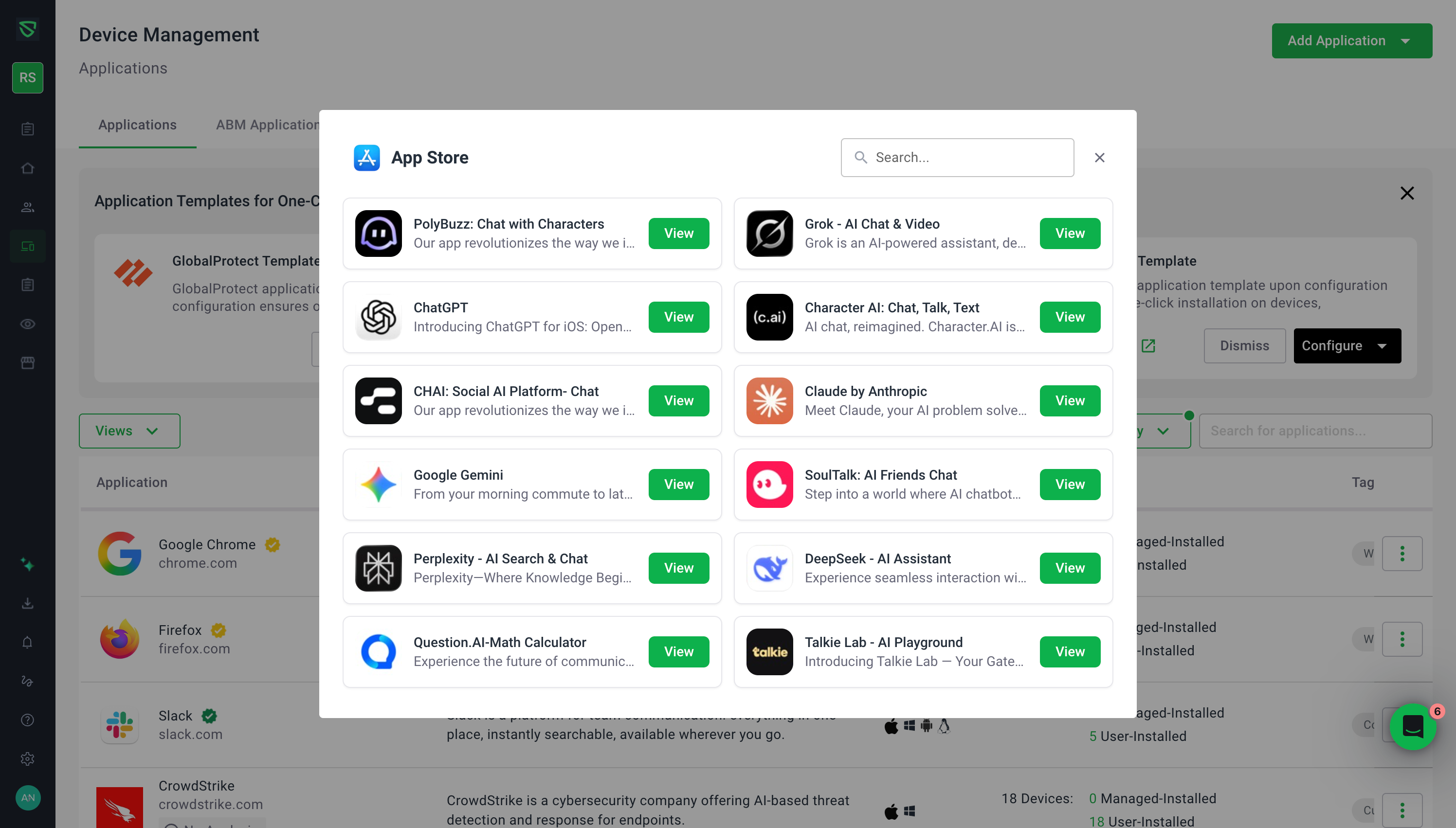
You can now deploy Apple App Store apps to your managed iOS and iPadOS devices directly from the Swif console.
What's new
Import Apple App Store apps — A new "Import Apple App Store Apps" option is available under the Add Application button. Search for any app from the Apple App Store, and the form will auto-populate with the app's name, description, identifier, and other details.
App details panel — View and manage details for your imported iOS/iPadOS apps, including App Store ID, bundle identifier, version, supported platforms, catalogs, and description.
iOS/iPadOS table filter — Filter your applications list by "iOS/iPadOS" under the Supported OS dropdown to quickly find your Apple apps.
Device assignment — Assign Apple App Store apps to company-owned iOS devices enrolled via QR Code. Select target devices and the system handles the rest.
User-approved installation — Unlike traditional forced installs, users receive a notification on their device and must confirm before the app is installed. This provides a better end-user experience while keeping admins in control.
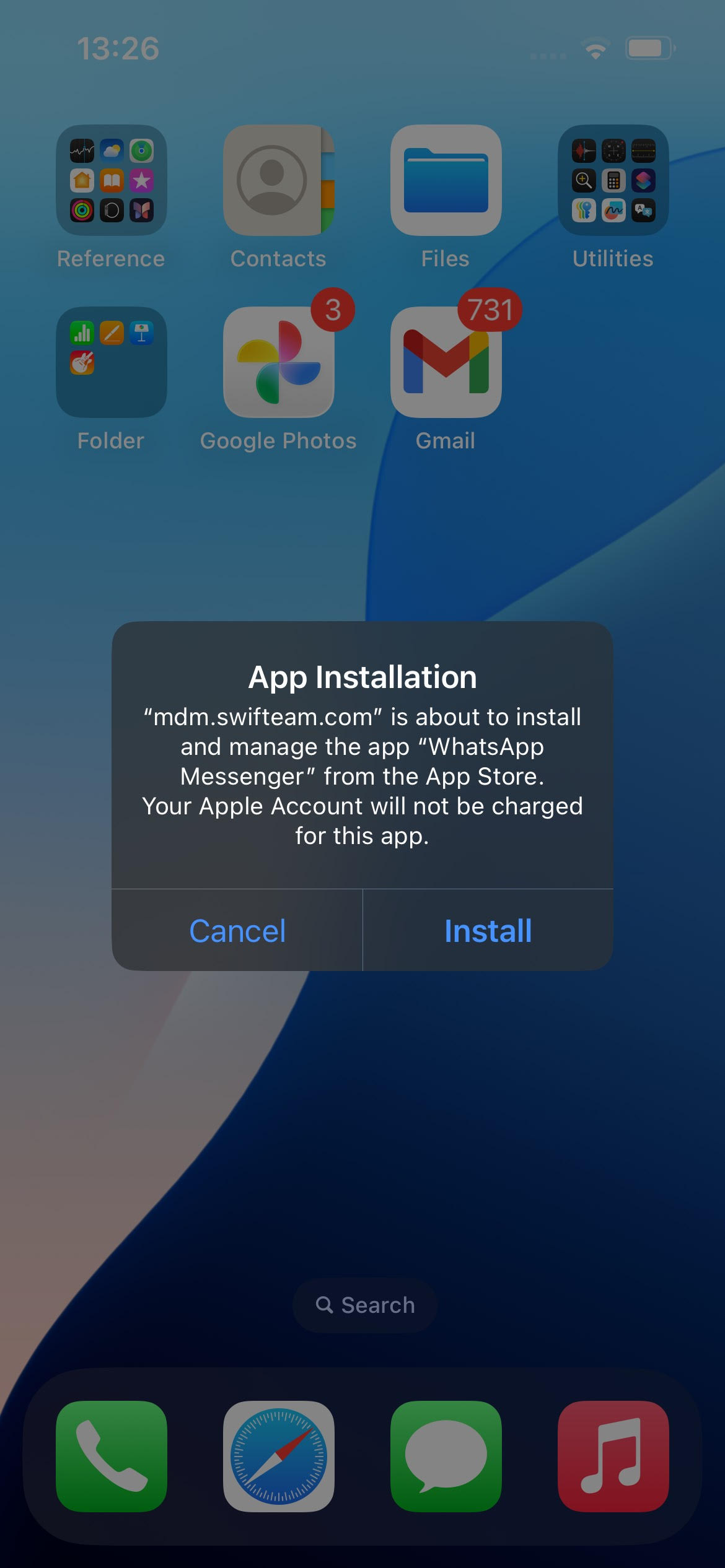
Automatic retry — If a user declines or hasn't yet installed the app, the system automatically resends the installation request every 6 hours until the app is successfully installed.
Things to know
This feature works on company-owned devices enrolled via QR Code. BYOD devices are not supported for Apple App Store app deployment.
App Store ID and bundle identifier are read-only after import and cannot be modified.
Clone and Extend actions are not available for Apple App Store apps.