Improved: Find and Manage What's Blocked, on Devices and Device Groups
Release Date: November 20, 2026
Category: Shadow IT
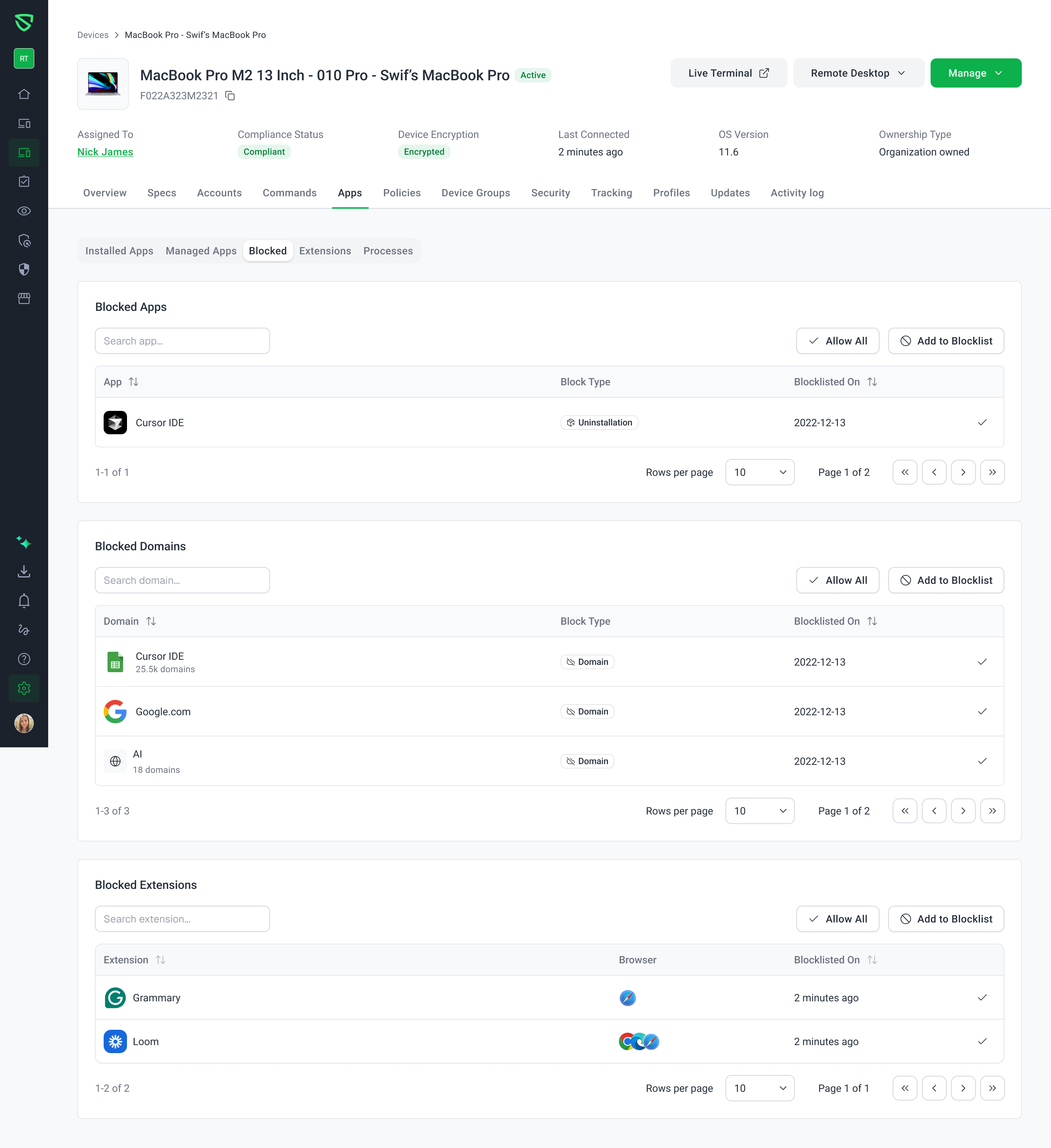
After blocking a domain category for a device group, it could be hard to find it again, to change or remove it. Now each device, and each device group, shows its blocks clearly, and the Manage Blocklist wizard shows what's already blocked before you add more.
What's New
A Clear Blocked List on Every Device
Separate tables: a device's Apps > Blocked tab now lists Blocked Apps, Blocked Domains, and Blocked Extensions separately. Each has its own search, Allow All, and Add to Blocklist.
See what each block is: each row shows its block type, such as Domain, and when it was blocked. Domain lists and categories show how many domains they include.
See Where a Block Comes From
Blocks from a device group are labeled on each device, such as AI · 77 domains · via All Windows Devices.
Click the group's name to open the group, and remove the block there, for every device in it.
Know What's Already Blocked, Before You Add More
Manage Blocklist now has separate steps for devices and device groups, each a searchable table.
Expand any device or group to see what it already blocks, and open it in a new tab to make changes.
Getting Started
To see a device's blocks, open it in Device Inventory, and go to Apps > Blocked.
To see a device group's blocks, open it in Device Groups, and go to Applications.
To block more, click Add to Blocklist, and follow the steps.
Learn More: