Extension Attributes
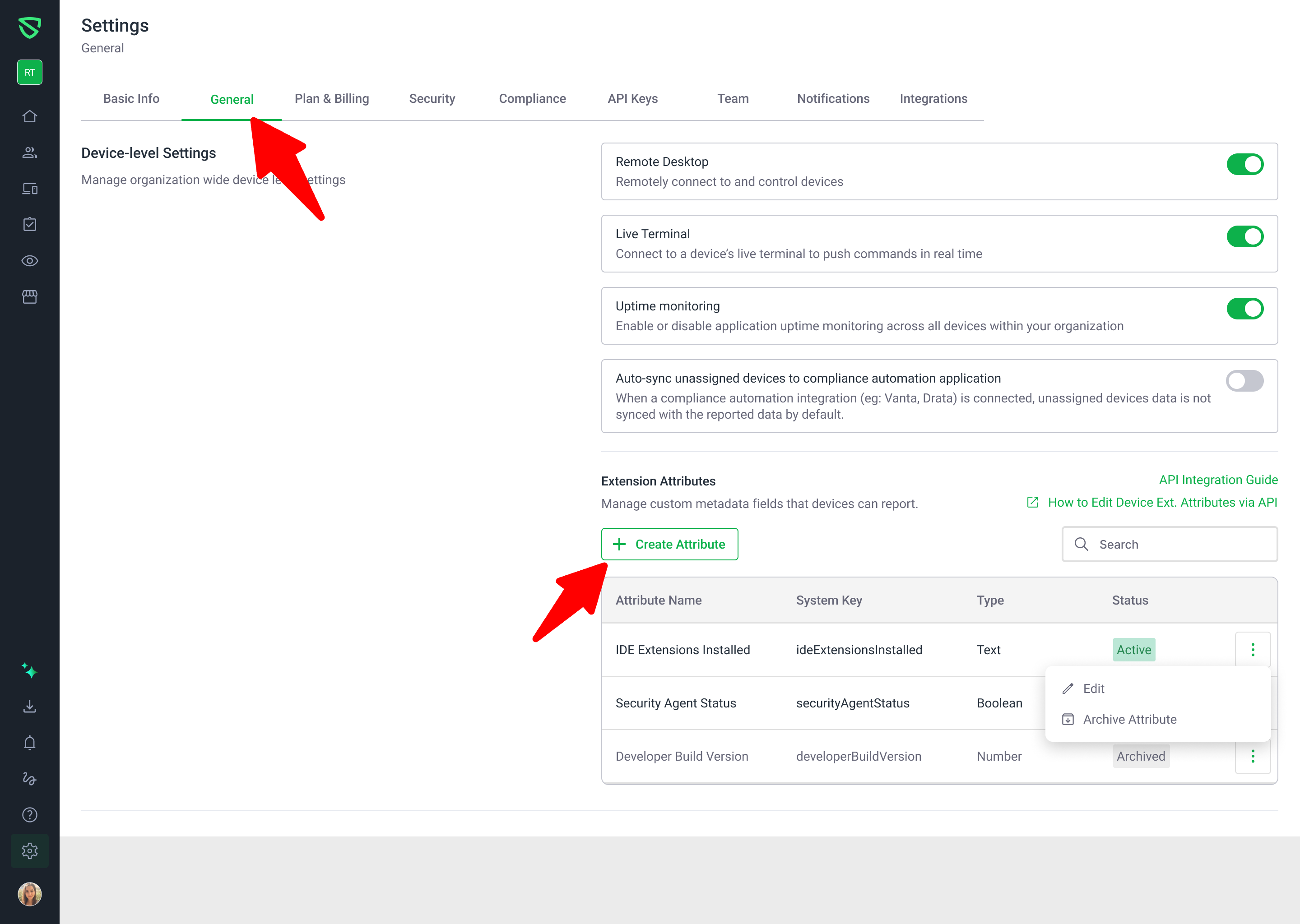
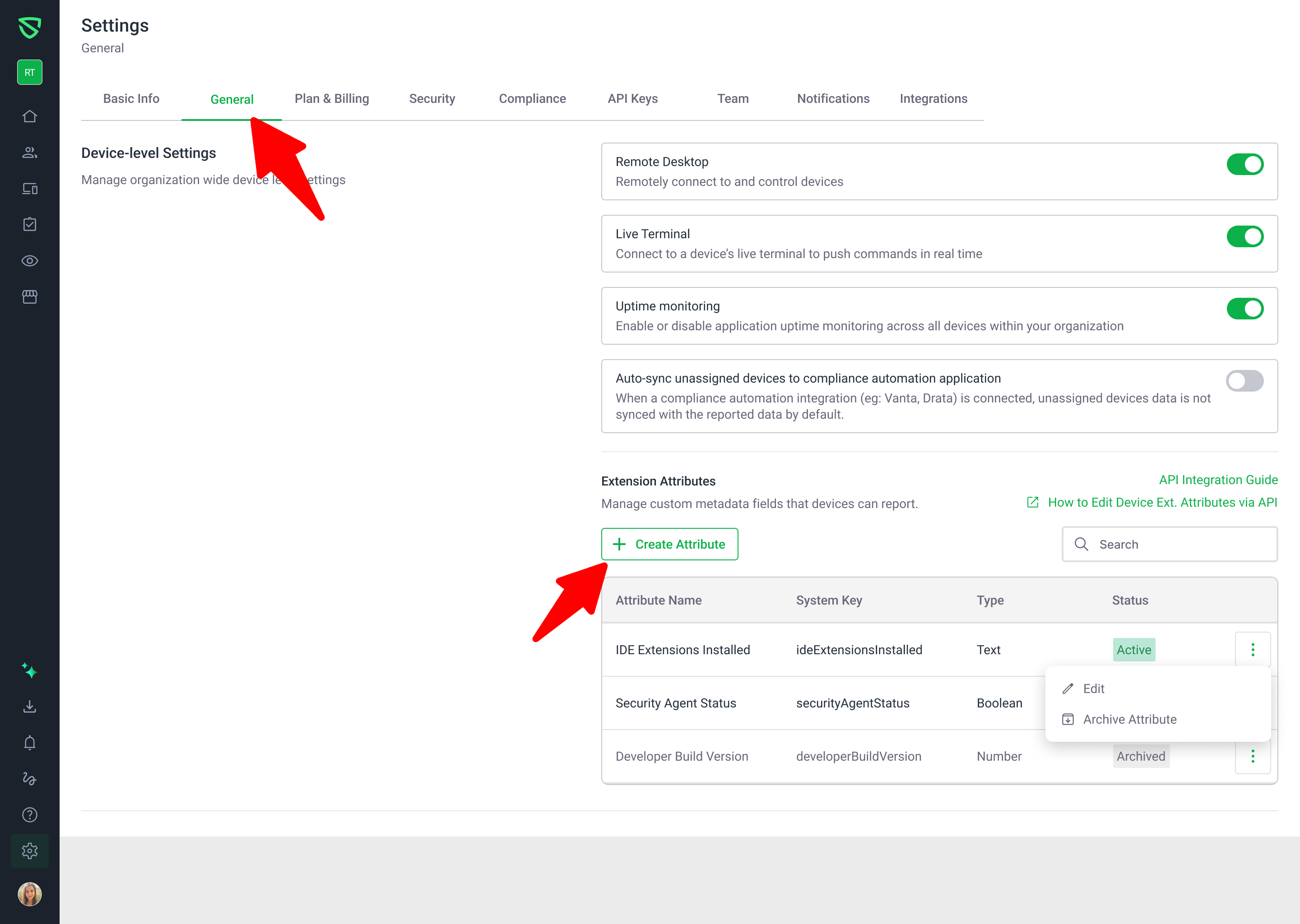
We’ve added a new Extension Attributes experience in the Swif web app so you can define and manage custom metadata on devices without relying solely on API calls.
What’s new
Extension Attributes settings page
New Extension Attributes page under Settings → General, where org admins can:
Create, view, and manage all extension attributes in one place.
Configure key, type (Text, Number, Boolean, List), description, and default value.
See clear empty states when no attributes exist, with a guided “Create attribute” CTA.
Built‑in validation to prevent duplicate keys, with friendly error messaging.
Archived attributes can be toggled and reactivated when needed.
Create & edit extension attributes (with default values)
New Create Attribute and Edit Attribute forms aligned with our latest UI designs.
You can optionally set a default value for each attribute so new devices get a sensible baseline value.
List‑type attributes allow arrays of values; Text, Number, and Boolean behave as single‑value types.
Keys are immutable once created to keep device‑level data consistent.
Extension Attributes on Device Details
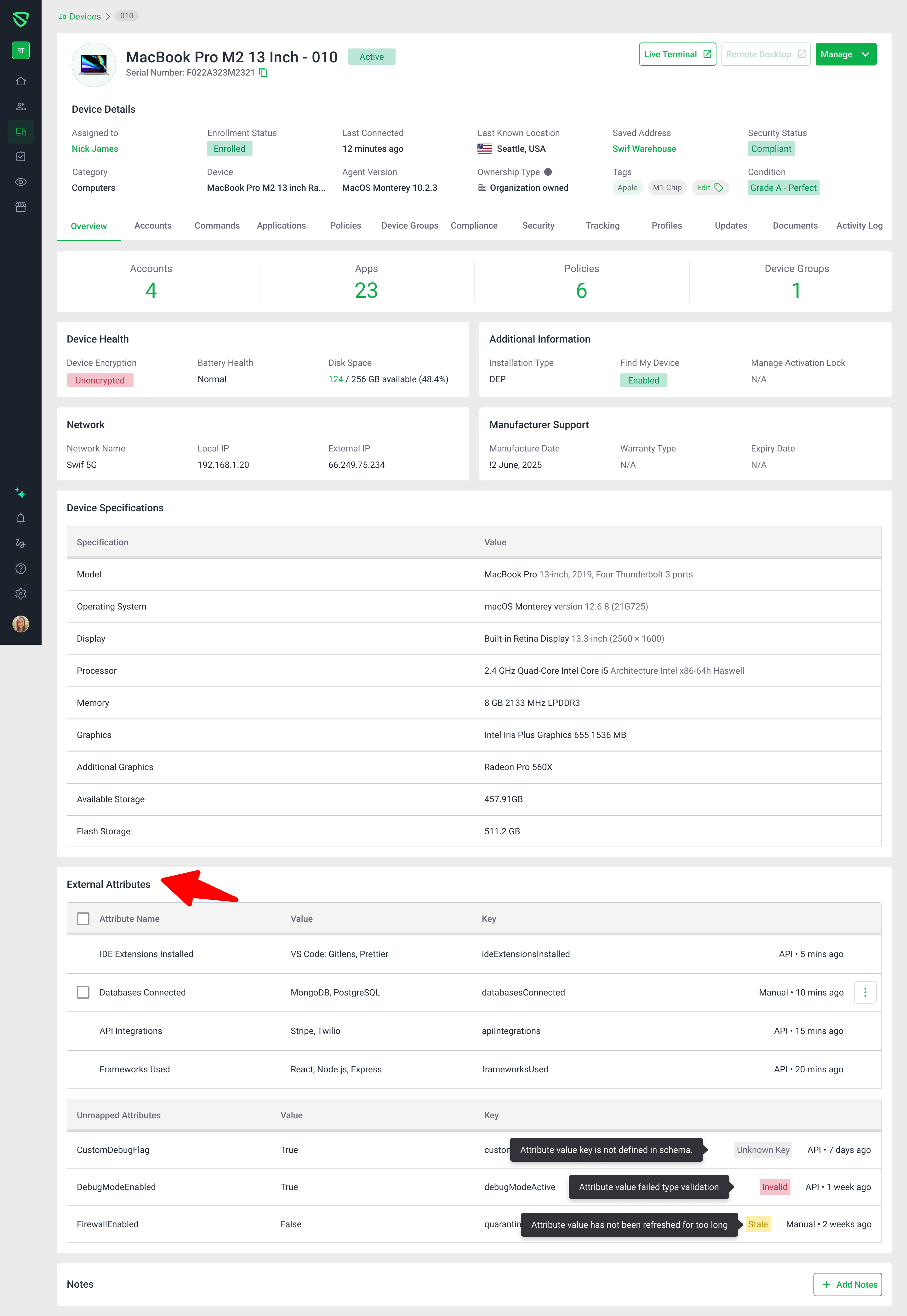
Each device now has an Extension Attributes section on the Device Details page.
All attributes defined at the org level appear here with their current values per device.
When attributes exist but have issues (for example, definition missing or invalid values), they are shown as unmapped / read‑only with a clear status such as:
Unknown Key – Swif can’t find the attribute definition.
Invalid – The value doesn’t match the expected type or manual updates aren’t allowed.
Limit Reached – An org or device‑level extension attribute limit has been hit.
Edit & bulk edit device‑level attribute values
From Device Details, you can now:
Edit extension attribute values for a single device.
Use Bulk Edit → Extension Attributes to apply changes to multiple selected devices at once.
Bulk editing shows how many devices you’re updating and confirms success or any failures per device.
Inventory‑level bulk editing with default values
From Device Management → Device Inventory, you can bulk edit extension attributes for many devices in a single action.
When you choose an attribute but don’t specify a custom value in this context, Swif will automatically set it to the attribute’s configured default value for all selected devices. This avoids guessing which existing device value to treat as “default” when multiple devices are selected.
Why this matters
Makes it much easier for teams to attach environment, region, app role, or other custom metadata to devices at scale.
Reduces errors by enforcing unique keys and surfacing clear statuses when values or limits are problematic.
Bridges API‑driven extension attributes with an intuitive UI so admins and operators can manage them directly in the web app.
Learn more
How to edit device extension attributes via Webhook/API:
How to Edit Device Extension Attributes via Webhook API | Help Center | Swif.aiGetting your Swif API token:
Your API key token for Swif.ai | Help Center | Swif.ai