Changelog - App Template
Overview
This release introduces enhanced guidance and clarity for users creating custom app templates (notably for CrowdStrike and SentinelOne) in the Swif web application. The improvements focus on transparency, platform flexibility, and a more intuitive setup experience.
Key Features & Improvements
1. Improved User Guidance During App Template Creation
Info Boxes: Added clear info boxes in the creation flow to inform users that policies and commands will be auto-created when setting up certain app templates.
Preconfigured Indicators: Visual “Preconfigured” tags now highlight when templates come with default settings.
Check Icons: Green check icons appear when all required fields are completed, providing instant feedback.
2. Enhanced Step-by-Step Experience
Step 1: Basic Information
Info box about auto-creation of policy and commands.
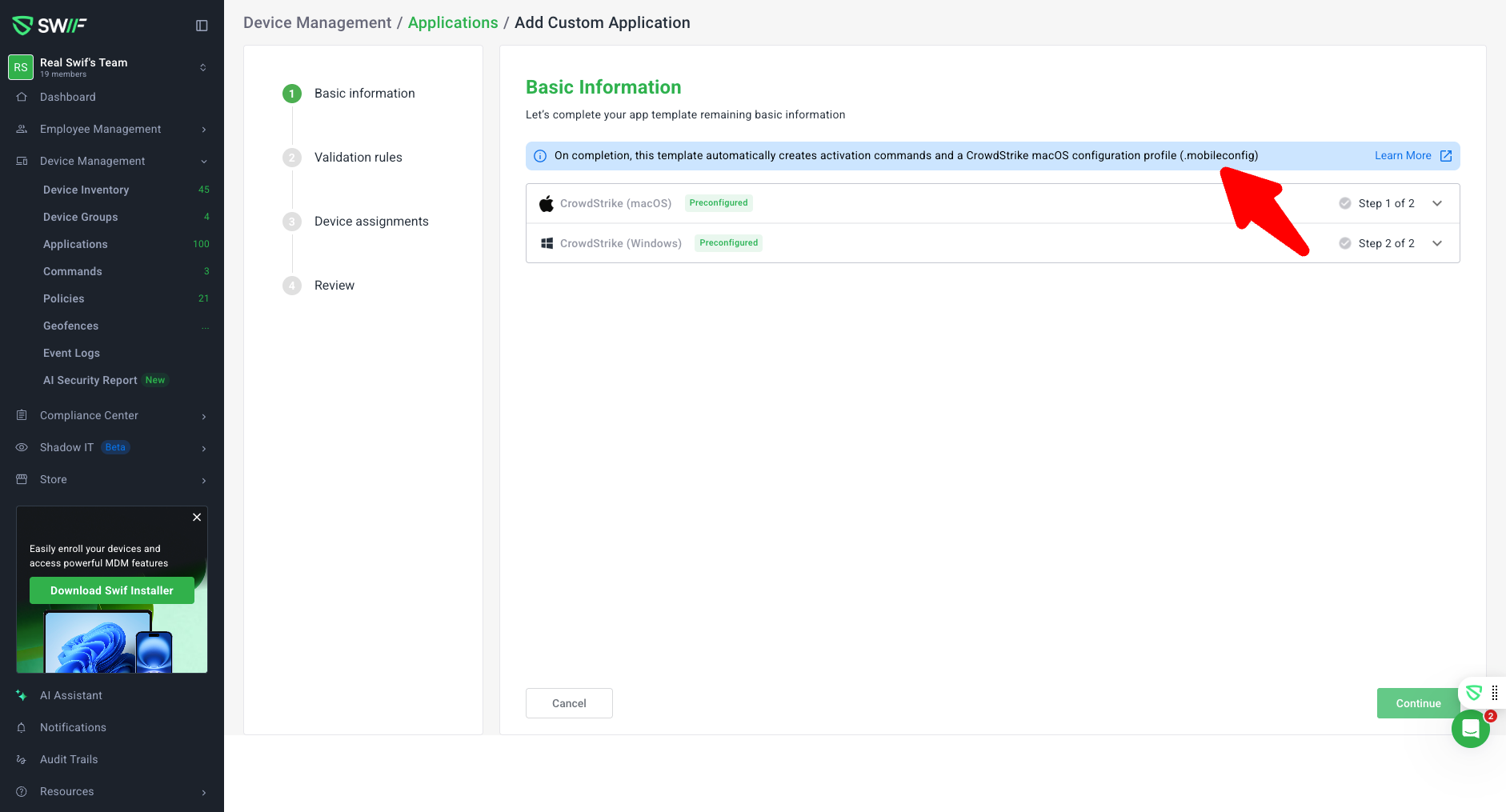
“Preconfigured” indicator and check icon for completed fields.
Recommendations for installer arguments.
Step 2: Validation Rules
“Preconfigured” indicator and check icon for completed fields.
Step 4: Review
Info box reiterating auto-creation of policy/commands.
All relevant fields (Basic Info, Validation Rules) are displayed for review.
3. Platform Selection Flexibility
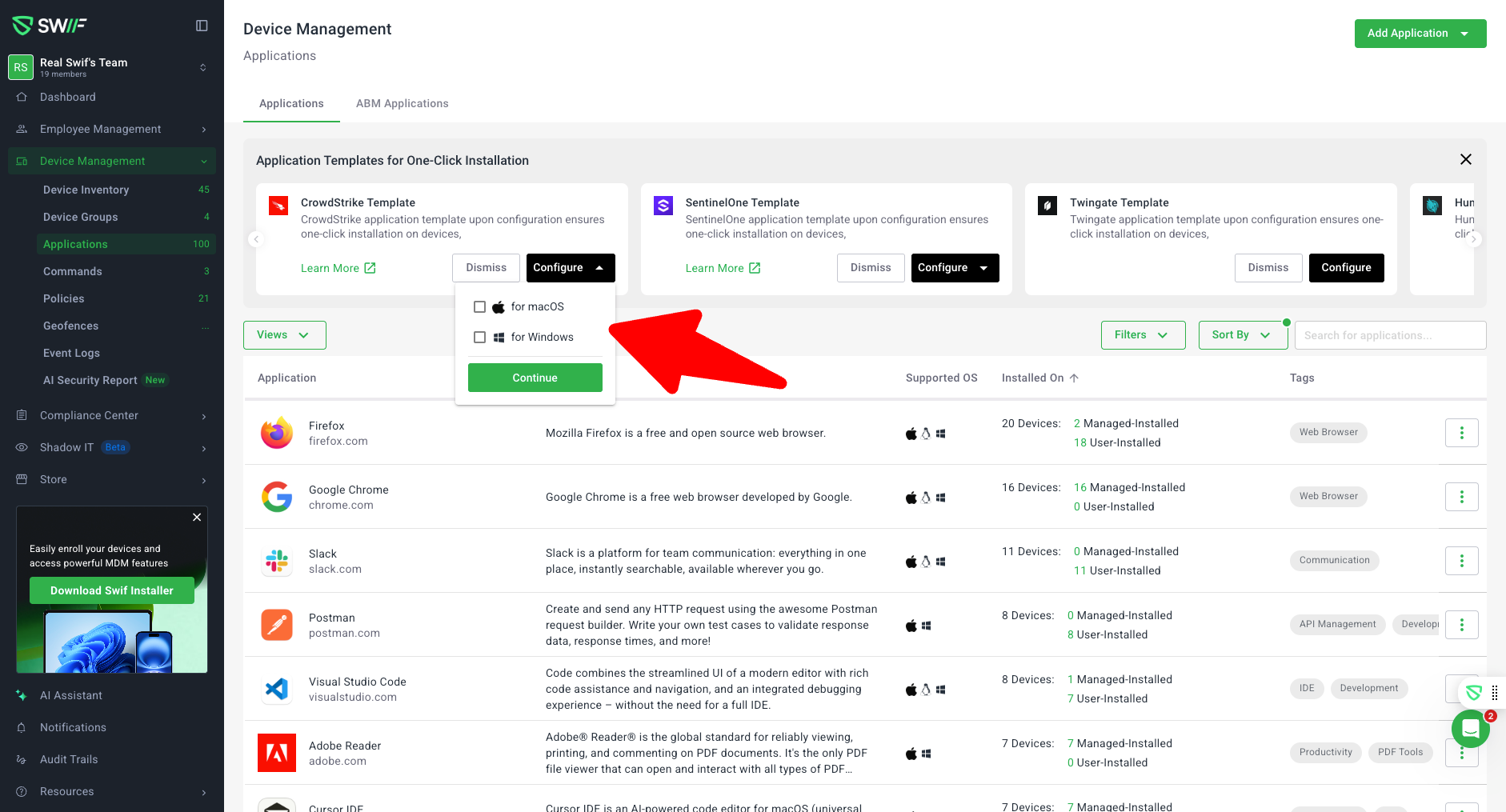
Multi-OS Support: Only CrowdStrike and SentinelOne templates now allow users to select both Windows and macOS platforms. Other templates are limited to a single platform.
OS Picker: Added a checkbox OS picker for templates supporting multiple platforms.
4. Conditional Creation of Mobile Configs and Commands
macOS-Only Mobile Config: Mobile config is created only if macOS is selected. No mobile config is generated for Windows-only selections.
Activation Command: Activation command is only created when applicable; not shown for certain macOS-only flows.
5. Policy Naming and Recognition
Auto-Generated Policy Naming: Policies created by templates are now clearly named (e.g., “Falcon Profile (Auto-generated)”) for easy identification.
Policy Visibility: Auto-generated policies are labeled and visible in the application detail view.
7. Consistent App Icons
Icon Consistency: App icons now match between the installation list and the app catalog for each platform, ensuring a consistent visual experience.