Block entire domain categories from your Blocklist
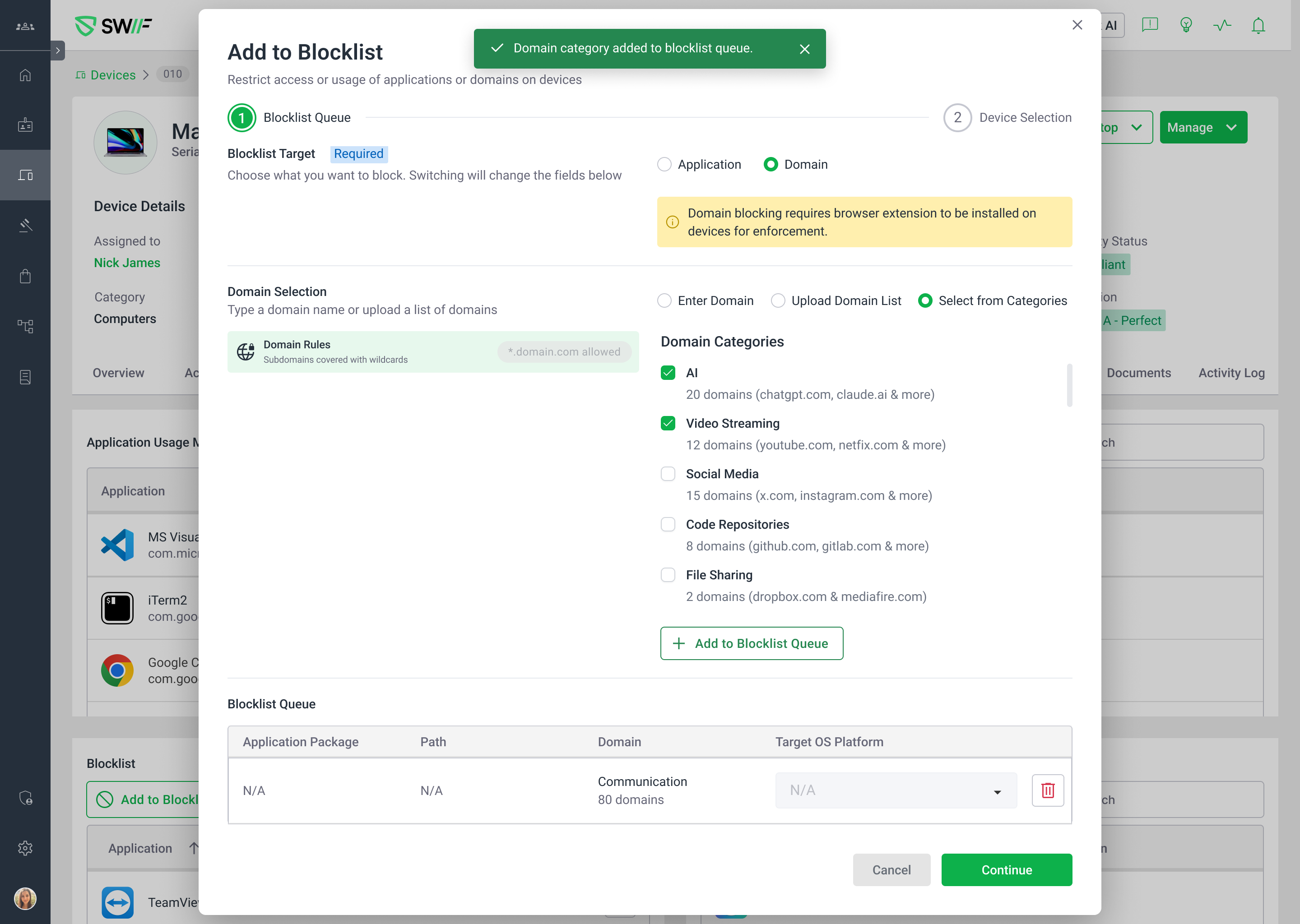
You can now block entire categories of domains at once — no more manually entering hundreds or thousands of individual domains.
What's new
When adding domains to your blocklist, a new "Select from Categories" option is available alongside the existing manual entry and file upload methods. Choose from 8 pre-populated domain categories:
How it works
Open Manage Blocklist and select Domain as the blocklist target.
Choose "Select from Categories" as the domain selection mode.
Select one or more categories using the checkboxes — each shows the number of domains included.
Click "+ Add to Blocklist Queue" and assign to your target devices or device groups.
Category blocks appear in Device Details → Apps → Blocked with a "Category" block type badge, making them easy to distinguish from per-domain or file-upload blocks.
Additional details
The "Block Sign-Up Only" toggle works with category selection — allow website access while preventing sign-ups to apps within blocked categories.
Category and per-domain blocks can coexist on the same device.
Subdomains within a category are automatically covered with wildcard rules.
Remove individual category blocks with "Allow," or clear everything with "Allow All."
This is especially useful for organizations enforcing compliance standards (ISO, SOC2, NIST) that require broad domain filtering policies.