See and Install Pending OS Updates Across Your Fleet
Release Date: October 28, 2026
Category: Software Updates
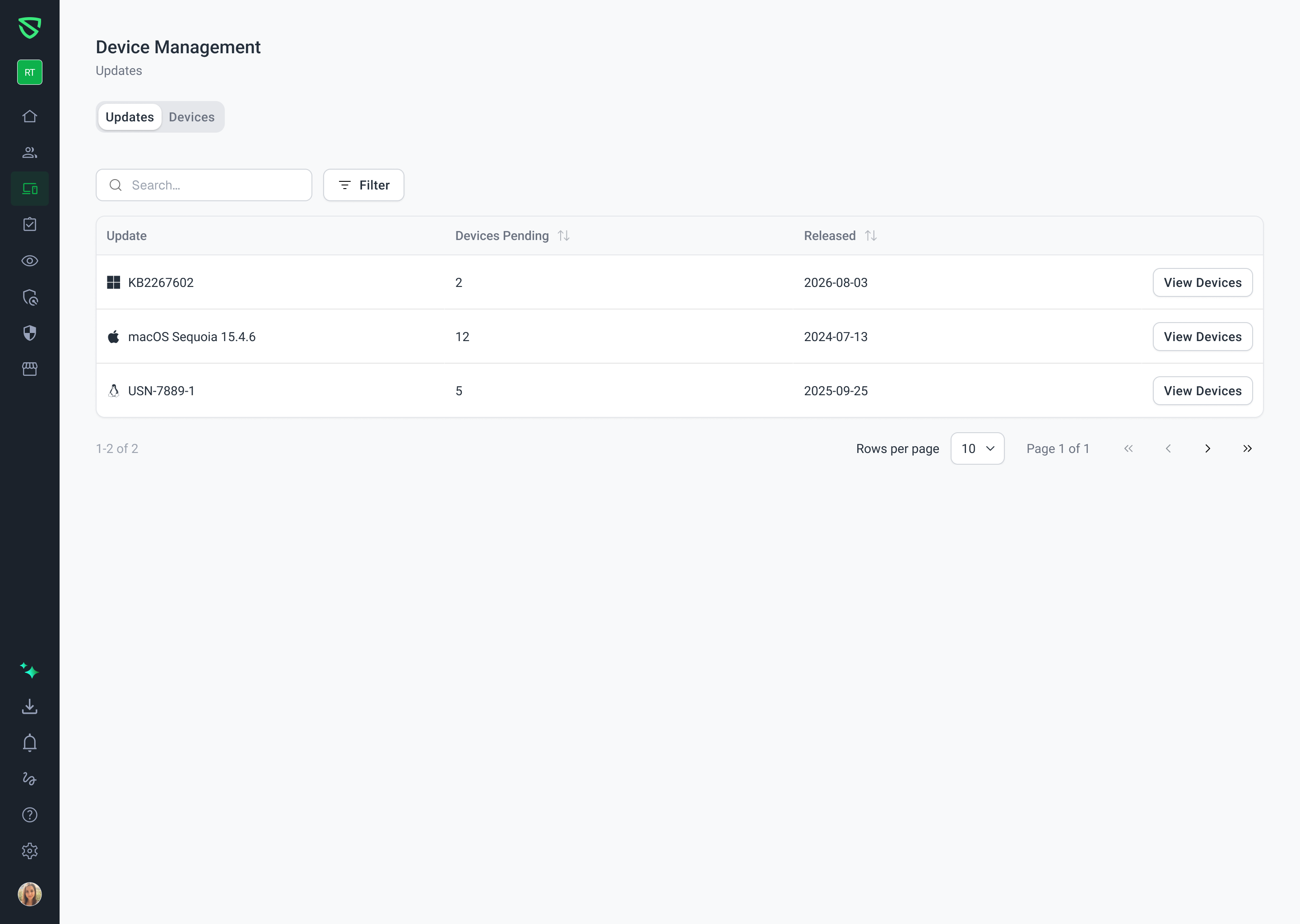
Finding devices that need operating system updates used to mean opening each device one at a time. The new Updates page shows every pending OS update across your fleet in one place, so you can find the devices furthest behind, and install updates on many devices at once.
What's New
Two Ways to See Pending Updates
Updates View: Each pending update, with how many devices still need it. Ideal for rolling out one update, such as a security release, everywhere it's needed.
Devices View: Each device with pending updates, with how many it has and how long it's been waiting. Ideal for finding the devices that are furthest behind.
Only What Needs Action: Fully up-to-date devices aren't listed.
Every Platform: Covers macOS, Windows, Linux, iOS, and iPadOS devices.
Find the Devices That Need Attention First
Pending Updates: See how many updates each device is missing. The list starts with the devices that have the most.
Pending Since: See when each device's oldest pending update was released, so you can spot devices that have gone longest without updating.
Search and Filter: Find devices by name, serial number, or assigned person, and filter by operating system.
Install Updates in a Few Clicks
Bulk Update: Select several devices from an update's panel, and install it on all of them at once.
Update One Device: Install a single update on a single device from the device's details.
Choose When It Installs: Install as soon as possible, or download now and schedule the install for later, where the update allows it.
Choose the Version: Pick the OS version to update each device to.
Track Progress: See each device's status, such as Pending Update or Update Queued, and when it's scheduled to install.
Getting Started
In Swif, go to Device Management > Updates.
Use the Devices tab to find the devices furthest behind, or the Updates tab to roll out a specific update.
Click an update, select devices, and click Bulk Update.
Learn More: