Real‑time location tracking now managed via Tracking Policies (Mac, Windows, Linux)
We’ve updated how real‑time location tracking works for computers to make it more consistent, auditable, and policy‑driven across your organization.
What changed
Related docs:
macOS tracking policy: Apple Tracking Policy | Help Center | Swif.ai
Windows tracking policy: Windows Tracking Policy | Help Center | Swif.ai
Linux tracking policy: Linux Tracking Policy | Help Center | Swif.ai
Key improvements
Real‑time location moved from Settings → General to Tracking Policies
The legacy “Real‑Time Location Tracking” setting has been removed from Settings → General.
Real‑time location events are now treated as a policy‑driven tracking signal: if a device is not assigned an OS‑specific tracking policy, its real‑time location data is not processed as tracking.
Clear “tracking policy required” state on Device details → Tracking
On the Tracking tab of a device (Mac/Windows/Linux):
If there is no tracking policy for that OS, the header shows Location Status: Disabled and a prominent info block explains that a Tracking Policy is required for real‑time location.
A Configure Tracking Policies / Go to Policy call‑to‑action guides you into the right policy flow based on the device’s OS.
Smart policy routing when you click “Go to Policy”
From Device details → Tracking or Geofence:
If no tracking policy exists for that OS:
You are redirected to Device Management → Policies → Create New Policy with the correct Tracking Policy type pre‑selected (macOS, Windows, or Linux).
If one or more tracking policies already exist:
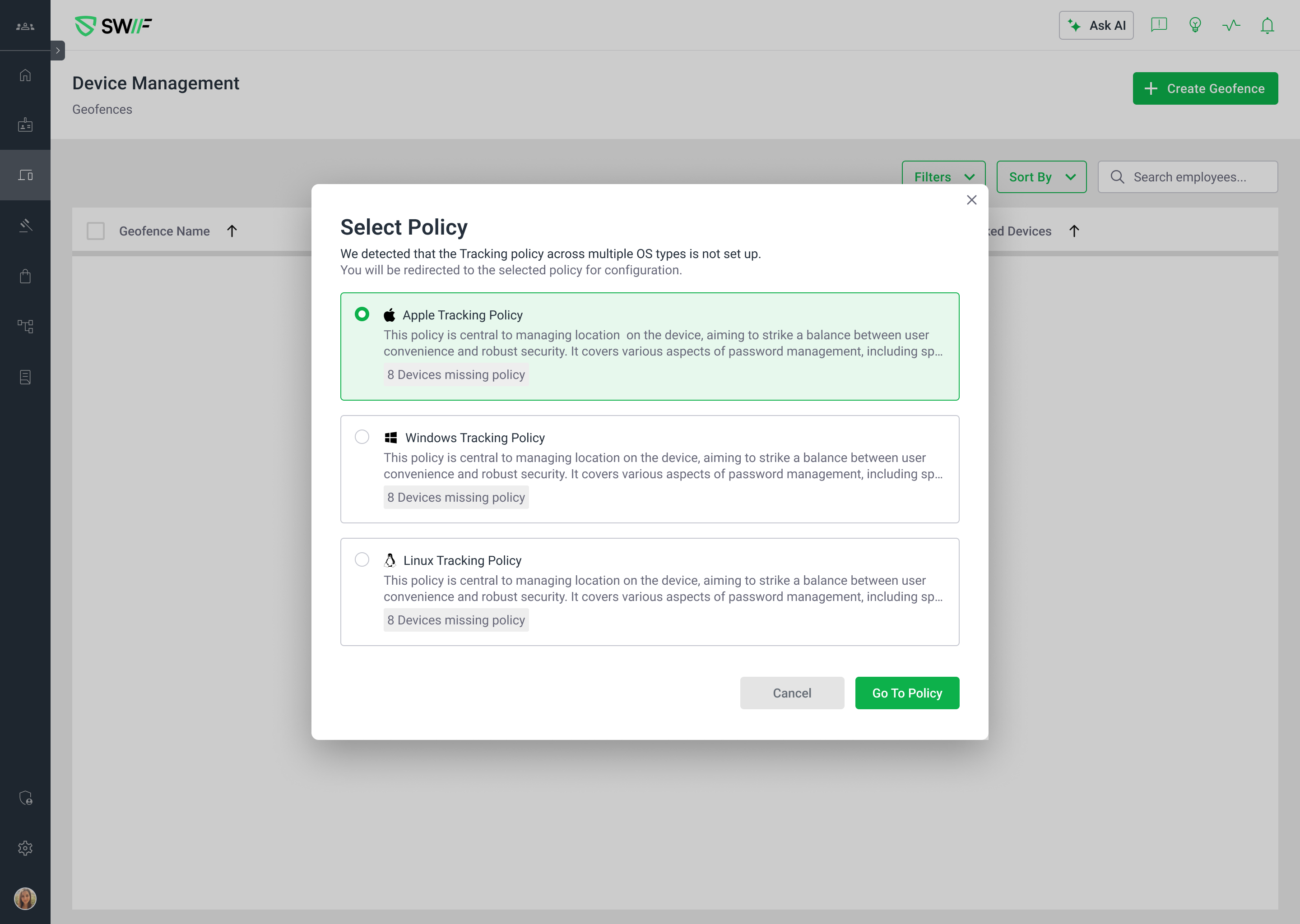
You first see a Select Policy dialog to choose the appropriate existing tracking policy (per OS).
After choosing, the app deep‑links to the selected policy’s detail page, opens the standard Assign dialog, and pre‑filters devices to only those missing that policy (including the device/geofence context you came from).
Better Geofence guidance and tracking‑status awareness
You can still view and create geofences even if tracking policies are not configured; existing geofence records remain visible so nothing appears “lost”.
The Geofence page now:
Shows an alert banner explaining that geofences require a Tracking Policy assigned to devices to function in real time.
Provides a Configure Required Policies / Go to Policy CTA, using the same OS‑aware create/select policy flow described above.
During Geofence → Create → Select Devices:
A dedicated Tracking Policy Status column shows which devices already have the necessary tracking policy.
If you select devices that are missing the policy, an inline warning bar appears so you can make an informed decision before saving.
Consistent, policy‑based enforcement
The only supported way to enable real‑time location tracking for Mac, Windows, and Linux computers is through Tracking Policies.
UI and backend behavior are aligned:
Without a tracking policy assigned to the device, Location Status remains disabled, and geofence enforcement will not actively track that device in real time.
When a tracking policy is assigned, the device’s Tracking tab reflects an enabled state and shows the standard real‑time tracking UI (map, last update time, etc.).
Why this matters
Stronger security & compliance – Real‑time location is now explicitly controlled and audited via OS‑specific policies instead of a global toggle.
Less misconfiguration – Clear UI guidance makes it obvious when tracking won’t work because a policy is missing.
Better admin experience – Deep‑links and pre‑filtered Assign dialogs reduce clicks and avoid duplicate policies.