Improved: A Simpler Way to Install Agentic Security
Release Date: November 20, 2026
Category: Agentic Security
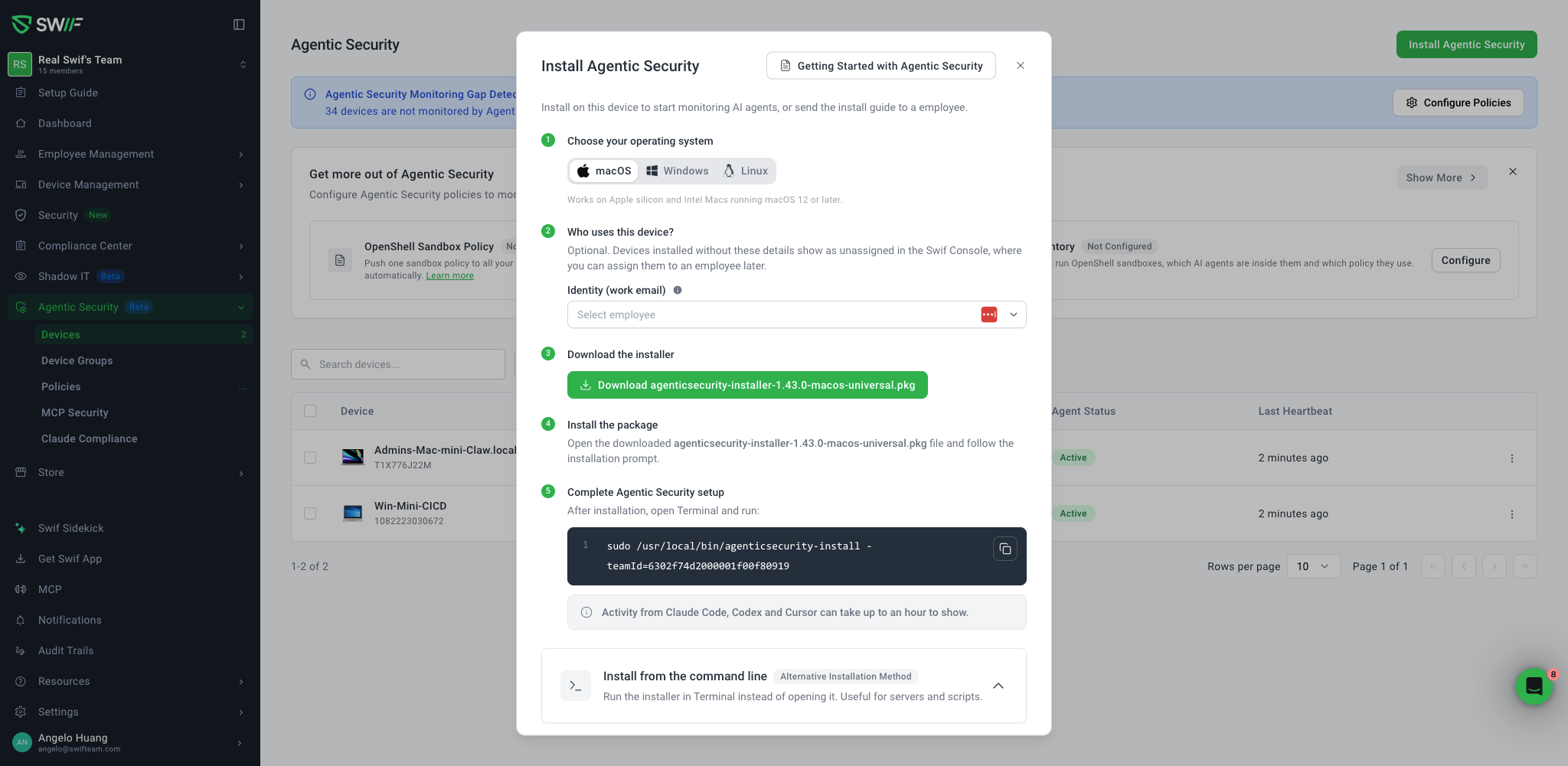
Installing Agentic Security now takes a few guided steps, whether it's one device, a server, or every Mac in your organization. The new Install Agentic Security window brings each method together, for macOS, Windows, and Linux, with the commands ready to copy.
What's New
Guided Steps for Each Platform
Choose macOS, Windows, or Linux, and the steps update to match.
Assign the device as you install it, by choosing the employee who uses it. This is optional. Devices installed without it show as unassigned, and you can assign them later.
Download, install, and finish setup, with the setup command already filled in with your team's details, ready to copy.
Install from the Command Line
For servers and scripts: download the installer for your architecture, arm64 or x64, and run it in a terminal, with each command ready to copy.
Deploy to Many Macs with Your MDM
Use Jamf, Kandji, or another MDM to install Agentic Security on many Macs at once.
Add a configuration profile, with your team's details, and your MDM's own variables for each user's name and email. Then deploy the package, and each Mac installs and enrolls itself.
Send the Install Guide
Email the steps to an employee, or another device, from the same window.
Good to Know
Activity from Claude Code, Codex, and Cursor can take up to an hour to show after installing.
Getting Started
In Swif, go to Agentic Security > Devices.
Click Install Agentic Security.
Choose your operating system, and follow the steps, or open Install from the command line, or Deploy with MDM.
Learn More: