User-Installed Apps
What's new
Usage column in Shadow IT → Applications
Each app now shows:
User Count – number of user accounts detected in Shadow IT for that app.
Device Count – number of devices where the app is user-installed (desktop).
Both counts are clickable links. Clicking the User Count navigates to the Users tab; clicking the Device Count navigates to the Devices tab — automatically filtered to that specific app so you land exactly where you need to be.
Apps with no usage now display "No Usage Data" and automatically sort to the bottom of the table, so high-risk apps with real usage stay at the top.
Per-device display at Shadow IT report
Each application in the Shadow IT report now shows detailed device-level information for every user-installed instance:
Device Name – the enrolled device's hostname or friendly name
Serial Number – the hardware serial number
Device Type – the device category (laptop, desktop, mobile)
Manufacturer – the device manufacturer (Apple, Dell, Lenovo, etc.)
OS Name – macOS, Windows, Linux, iOS/iPadOS, or Android
This makes it easy to answer questions like "which devices have Granola installed?" at a glance from the Shadow IT report.
OS breakdown on the Software Page
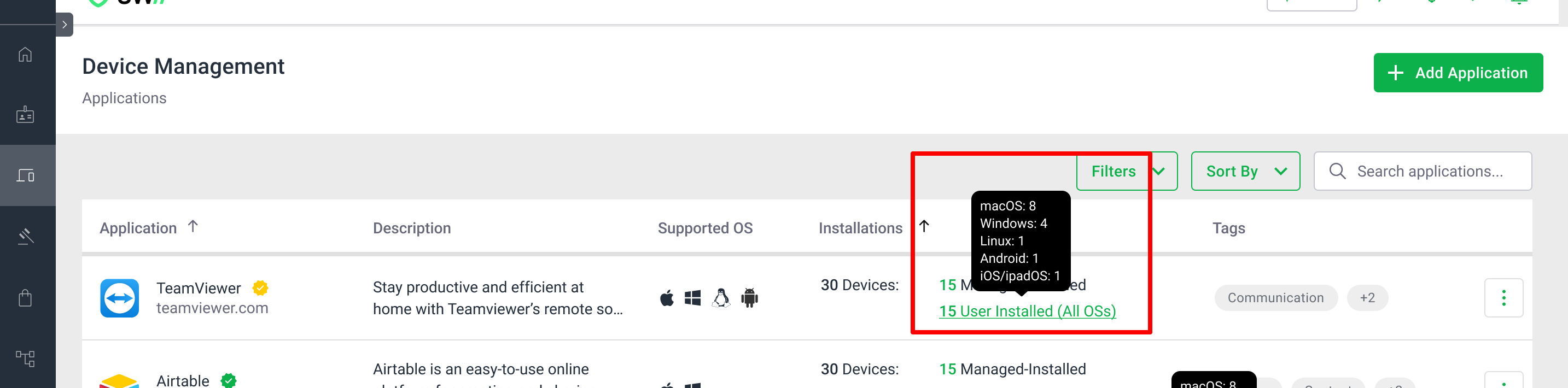
User-installed app counts on the Software Page now include OS scope context:
(All OSs) – the app is detected across all supported platforms
(Across X OSs) – the app is detected on a subset of platforms (e.g., "Across 2 OSs")
(macOS), (Windows), (Linux) – the app is detected on a single platform only
Tooltip: Hover over the User Installed count to see a per-OS device count breakdown (e.g., macOS: 5, Windows: 3, Linux: 1).
Views: Switch between a Per-OS view (apps grouped by operating system) and an All OSes combined view. Totals are always consistent between views.
Clicking the User Installed count on the Software Page redirects directly to the Devices tab (User Installed) in Shadow IT.

Application details – Users tab (browser usage)
Shows active accounts for that app based on browser usage only.
Last Active column displays the last time the user accessed the app via browser, including location (from browser data).
A notice clarifies that this tab reflects browser usage data only.
Application details – Devices tab (user-installed apps)
One row per device where the app is installed by the user.
Includes device, owner/user, OS, Last Active, and (where available) location from device usage.
A notice clarifies that this tab reflects user-installed apps usage data only.
OS filters to narrow down installations by: macOS, Windows, Linux, iOS/iPadOS, Android.

Application details – Device Groups tab
Each row is a device group with this app installed on at least one device.
Last Active reflects usage from user-installed apps within the group, with location when available.
A notice clarifies that this view shows user-installed apps usage data only.
Group Type filter: Filter by Manual vs Smart groups.

User details – Active Accounts tab
On each user's Active Accounts tab:
Usage now splits into User Count (browser access) and Device Count (user-installed desktop instances).
Last Active combines browser app activity (with browser-based location) and user-installed app activity (with device-based location).
If only desktop usage exists, source/permission metadata shows N/A; if both browser and desktop usage exist, source and permission level are shown based on browser access.
Usage filters for desktop app visibility
New Usage filter option: Has Desktop app (user-installed apps) Usage
This lets you focus on apps that have actual user-installed desktop usage — browser-only apps and apps with "No Usage Data" are excluded.
Why this matters
Previously, there was no single place to see all installations of an app across users and devices (e.g., "who has Granola installed on their laptops?").
With this update, Shadow IT becomes the central view for:
Which users have access to an app (browser).
Which devices have the app installed locally (desktop) — with full device details and OS breakdowns.
How and where those apps were last used, with clear separation between browser and user-installed data.
One-click navigation from any count directly into the filtered detail view — no manual searching required.
Learn more at User-Installed Apps.