Verified software badges in the Swif Catalog & App Details
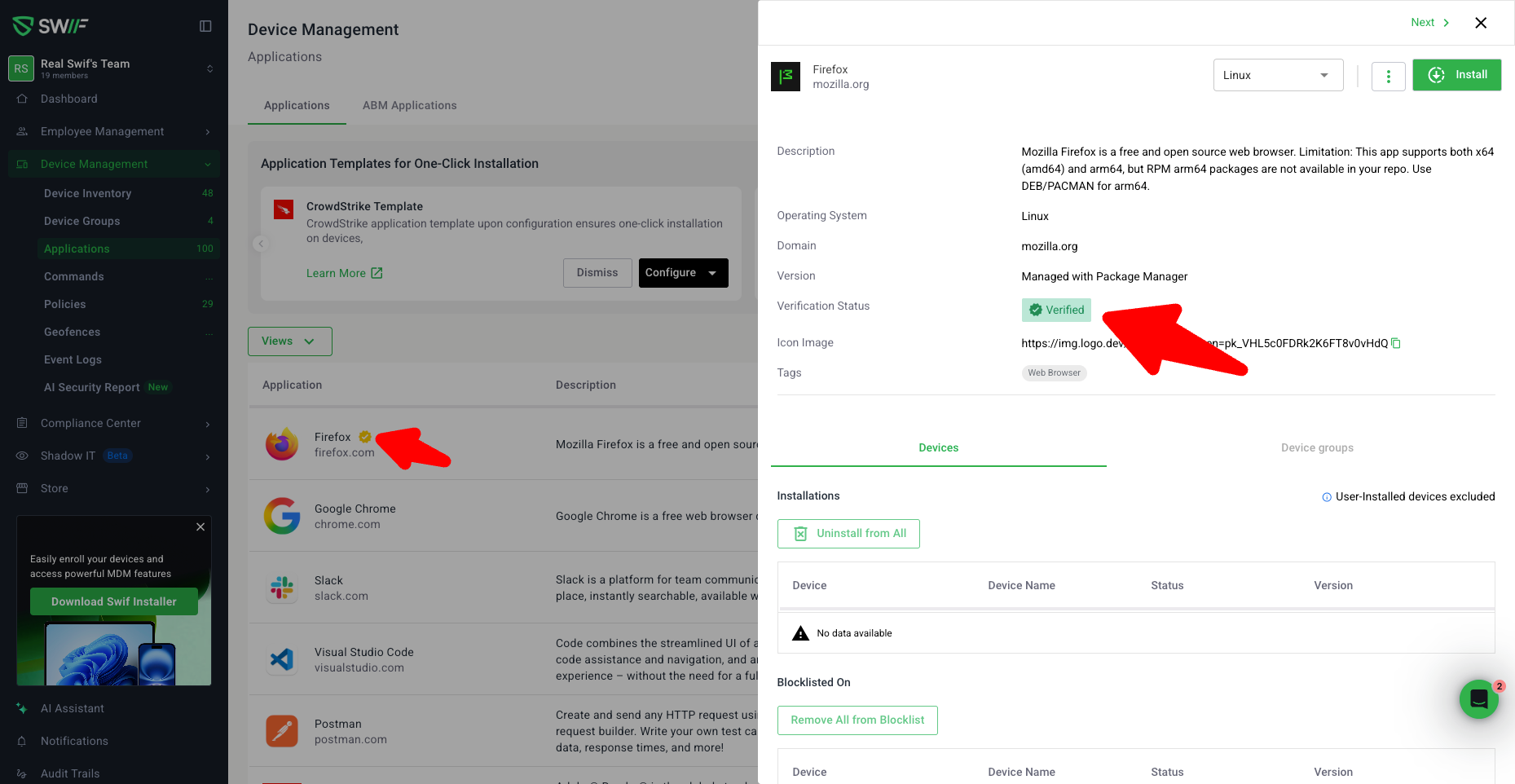
We’ve added visual “Verified” indicators across the Software Catalog and Application Details to make it easier to see which apps Swif has tested.
What’s new
Verified & Partial Verified chips in the Application Catalog
Apps now show a Verified chip when every OS for that app has at least one version marked as
VERIFIED.Apps show a Partial Verified chip when at least one OS is verified but not all OSes have a verified version.
If no OS/version is verified, no chip is shown and the row renders normally.
Changing verification status in the backend (via
application/update/validate-status) automatically updates the chip:No verified versions → no chip
Some OSes verified → Partial Verified
All OSes have a verified version → Verified
Per-version verification status in Application Details
Application details now show a dedicated verification row/badge per OS and version:
Verified – Swif has successfully tested installation for that specific OS and version. The UI also shows “Verified since …” (the version where verification was first added), matching the design in the Verified Application Zeplin screens.
Never Tested – Swif has no installation test record for that OS/version.
Each OS tab/section reflects its own state (e.g., macOS may be Verified while Linux is Never Tested).
Cleaner UI: “Not Verified” is hidden
Even if the backend status is
NOT VERIFIED, the UI does not show a “Not Verified” badge or chip.Users only see:
Verified / Partial Verified in the catalog, and
Verified / Never Tested in application details.
These improvements make it much easier to understand at a glance which apps and versions Swif has vetted.