Improved version tracking for custom desktop applications
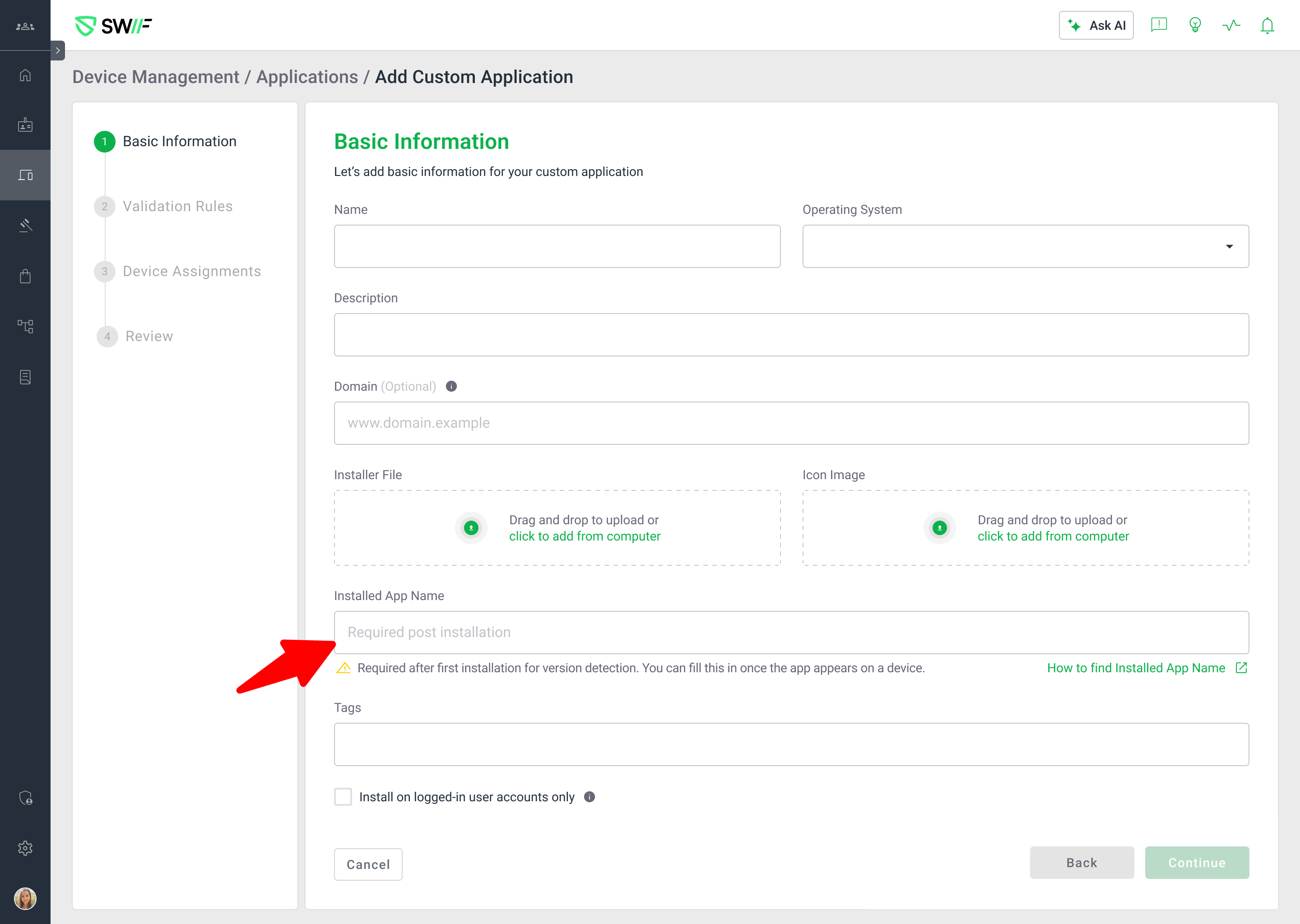
We’ve added a new Installed App Name field to make version tracking more reliable for custom applications on macOS, Windows, and Linux.
Previously, version checks could fail when the name configured in Swif.ai (e.g., “Cloudflare WARP Client”) did not match the actual installed app name on the device (e.g., “Cloudflare WARP”). With this release:
New “Installed App Name” field on upload
When you add a custom macOS/Windows/Linux app via Software → Add Custom Application, you can now specify the Installed App Name used by the OS after installation.
This field is optional on create, so you can still upload apps without it and complete configuration later.
Installed App Name shown on Application Details
The Application Details page for custom apps now displays the Installed App Name as its own field.
If no value has been set, the field is still shown with a placeholder (
-) so it’s clear that the identifier is missing.
Clear warnings when the Installed App Name is missing
If an app doesn’t have an Installed App Name configured, its installed versions will show “Warning N/A”.
A warning message explains that version tracking is pending until the identifier (Installed App Name / Package ID) is set, so admins know exactly what to do.
Edit support for Installed App Name
From Application Details → Edit Application, you can set, update, or clear the Installed App Name at any time.
Once configured, Swif.ai can correctly match installed applications and show accurate version information.
This change applies to custom desktop applications (macOS/Windows/Linux). Android custom apps continue to use Package ID for identification (handled in a separate improvement).
For guidance on how to find the correct installed name on a device, see our help article:
How to Find the Installed App Name for Custom Applications | Help Center | Swif