Connecting Swif with Okta for HRIS Integration
Overview
This feature allows Swif users to integrate their Human Resource Information System (HRIS) with Okta, enabling seamless synchronization of user profiles from Okta to Swif. This integration simplifies user management by automatically importing user data from Okta into Swif, ensuring that employee records are always up-to-date.
Key Benefits
Automated User Management: Automatically create and update user profiles in Swif based on Okta data.
Seamless Integration: Connect with Okta using OAuth 2.0 (OIDC) for secure and efficient data transfer.
Customizable Synchronization: Choose which user data to sync and manage synchronization settings directly from Swif.
How to Set Up the Integration
Step 1: Create an OAuth 2.0 (OIDC) App Integration in Okta
Navigate to Applications: From your Okta Admin Console, go to the Your OIN Integrations section.
Add a New Application: Click Create App Integration and select OIDC – OpenID Connect as the sign-on method and Web Application as Application type
Configure General Settings:
App Name: Name your integration (e.g., “Swif Employee Import”).
Grant Type: Select Refresh Token
Sign-in Redirect URIs: Enter the redirect URI(s) https://app.swif.ai/callback/okta
Trusted Origins: Configure if your platform uses cross-origin requests.
Assign Grant Types and Scopes:
Add Okta API scopes:
okta.users.read,okta.groups.read.
Assign application permissions to the user who creates the HRIS connection. Otherwise, the user does not have permission to create the connection.
Save the Application: Obtain the Client ID and Client Secret from Okta.
Step 2: Implement OAuth Flow in Swif
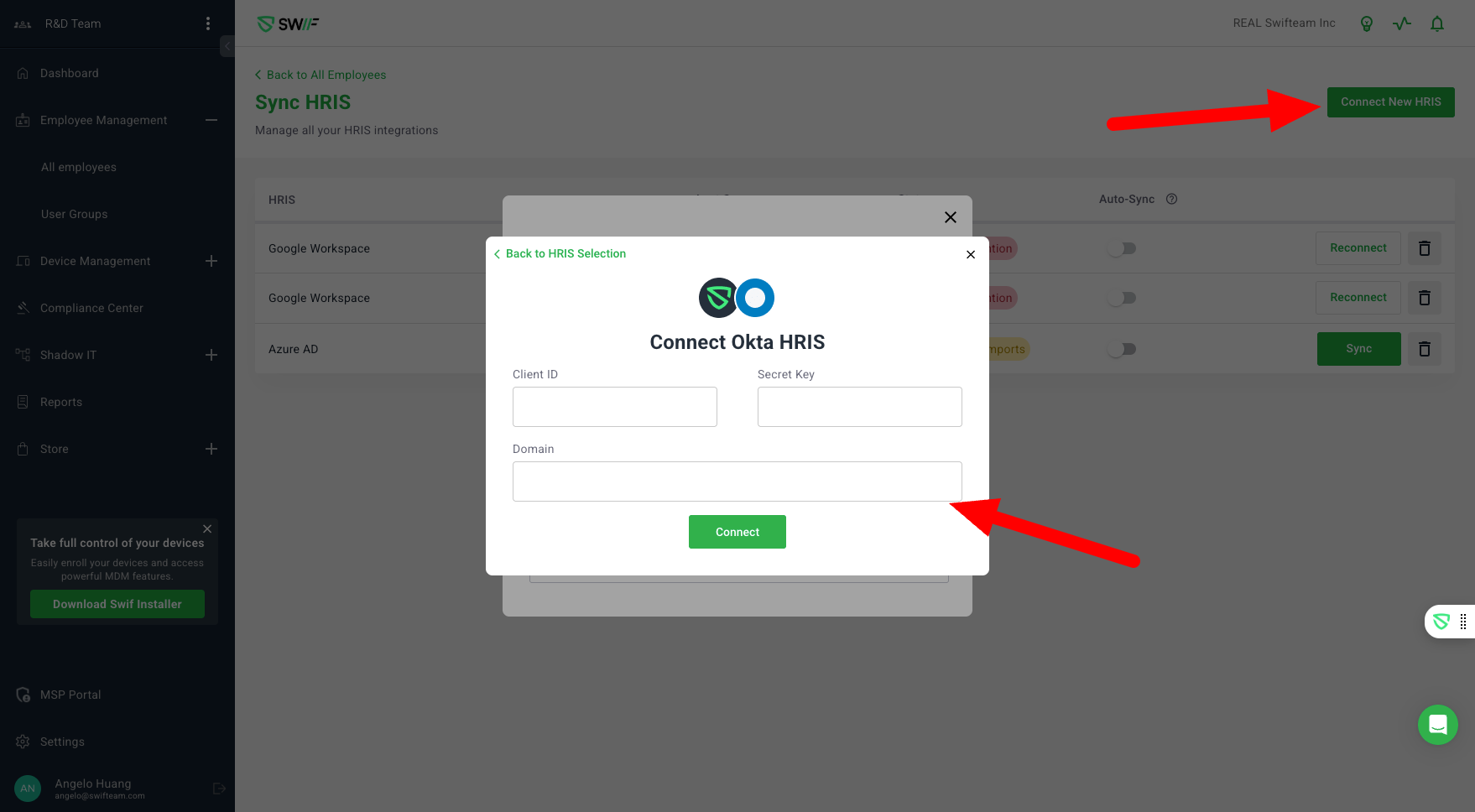
Enter Okta Credentials: In the HRIS connection window in Swif, enter the Client ID, Secret, and Okta domain.
Authorize Connection: Swif will use these credentials to authenticate with Okta and establish a secure connection.
Sync User Data: Manually sync user data or enable auto-sync to keep Swif updated with Okta.
Managing the Integration
Connect New HRIS: Click “Connect New HRIS” in Swif to start the integration process.
Submit Okta Credentials: Enter your Okta Client ID, Secret Key, and Domain to establish the connection.
Sync User Data: Manually sync user data or enable auto-sync to keep Swif updated with Okta.
Troubleshooting
Ensure that all required scopes and redirect URIs are correctly configured in Okta.
Verify that the Client ID and Secret Key are correctly entered in Swif.
Check network connectivity and permissions if synchronization fails.
For more detailed instructions, refer to the Help Article.