Command: Run custom commands directly from Device Details
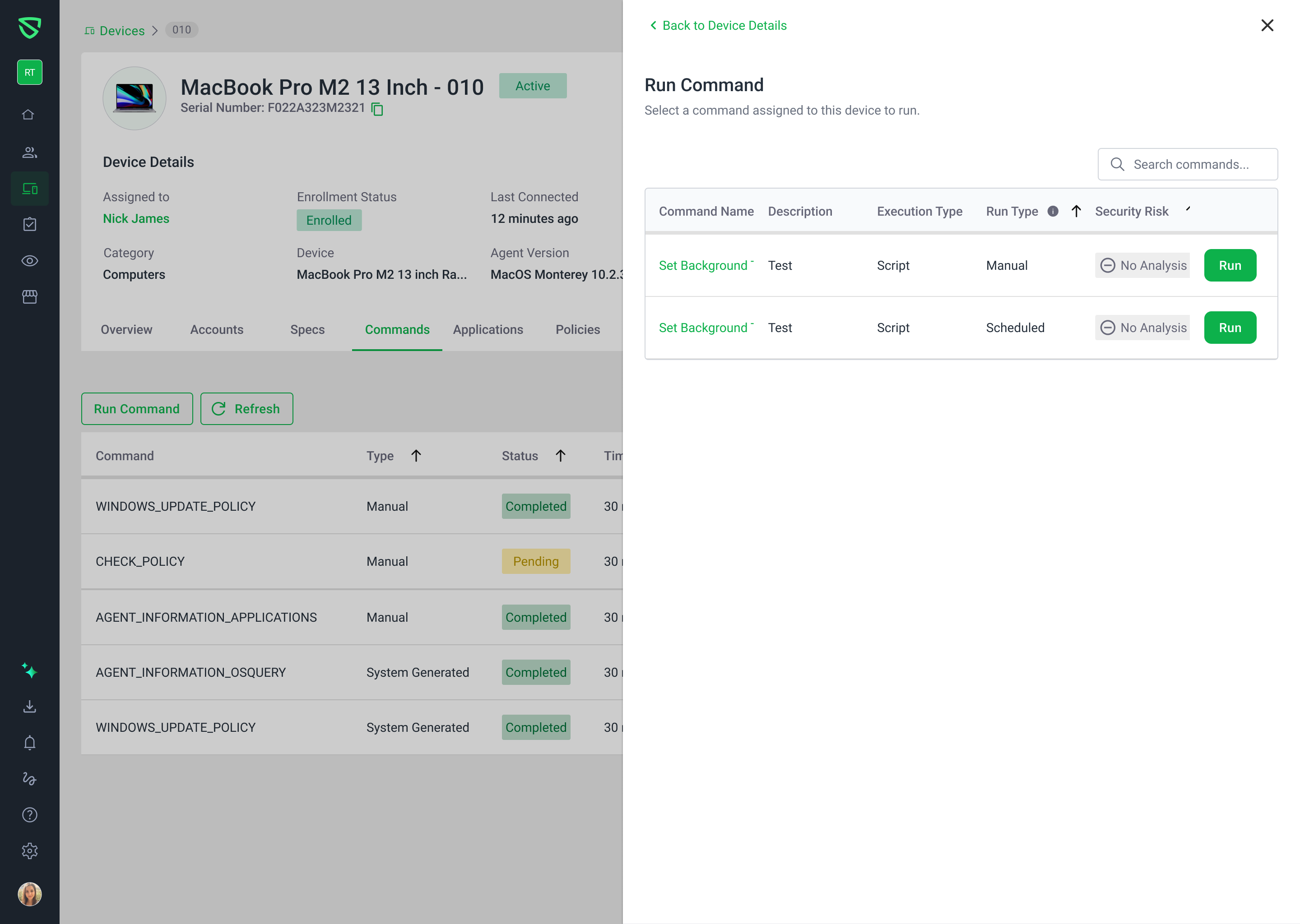
Summary
You can now run your defined commands directly from a device’s details page, so you don’t have to jump back and forth to the global Commands area while troubleshooting a single device.
What’s changed
Added a Run Command button under the Commands tab on each device’s details page.
Clicking Run Command opens a side panel that lists only the commands assigned to that specific device (including commands assigned via device groups).
The panel shows key details for each command:
Command Name
Description
Execution Type (manual, scheduled, etc.)
Run Type (immediate vs. scheduled)
Security Risk (with the same labels and colors as the global Commands page)
From this panel, you can trigger a command on the current device with one click.
After you run a command, Swif shows a clear success or error message based on the backend response (including cases where the device is offline, busy, or the command can only be queued).
Who is affected
Admins and team members with permission to view and execute commands on devices.
Teams that use commands as “on‑demand scripts” during investigations (for example: triggering a compliance sync, opening a live terminal, or checking disk space).
Notes / rollout details
Only commands that are actually assigned to the selected device are shown; if no commands are attached, you’ll see an empty‑state message instead of a list.
Commands that require extra parameters will either:
Prompt you using the existing parameter flow (where supported), or
Be blocked with a clear message if parameterized execution isn’t supported yet in this view.
Permission checks and security risk badges are enforced the same way as in the main Commands page.