New: Guided onboarding questionnaire and Setup Guide for new workspaces
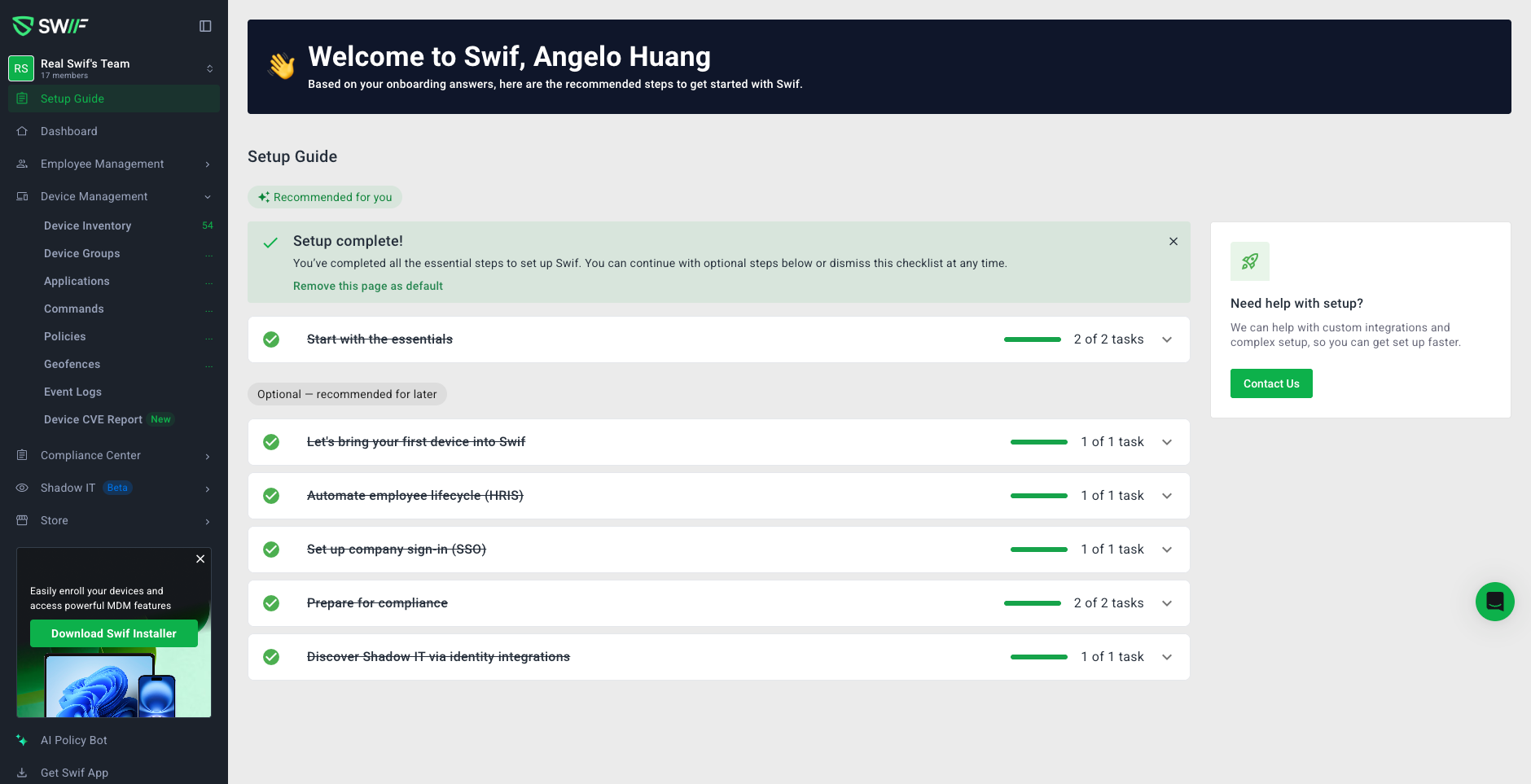
We’ve launched a new first-time experience (FTUX) to help new admins get Swif.ai configured faster and with less guesswork.
What’s new
Onboarding Questionnaire (Steps 1–3)
After signup, new admins are guided through a short questionnaire:Company details – Capture basic org info, including number of employees.
If you enter more than 50 employees, you’ll see a new optional setup item to “Set up company sign‑in (SSO)” in the Setup Guide.
Compliance – Select the compliance frameworks you care about (SOC 2, ISO 27001, HIPAA, NIST, NIS2, etc.), or choose to request a template.
Any supported frameworks you pick are automatically set as your Active Compliance Scope in the Compliance Center.
If you choose “Request a Compliance Template” or “Not right now”, we’ll surface a follow‑up step in the Setup Guide so you can finish configuring your scope later.
Devices – Tell us which device types you manage (macOS, Windows, Linux, iOS & iPadOS Devices, Android Devices).
These selections are used as defaults anywhere you create Smart Device Groups or turn on Recommended Policies, so you don’t have to re‑select OS types every time.
Onboarding completion screen
Once you’ve finished the questionnaire, you’ll see a new Onboarding Complete page and will be taken directly into the Setup Guide on your next login instead of the old FTUX view.New Setup Guide page (your default landing page after onboarding)
The Setup Guide is now its own page and becomes the default landing page for new admins after onboarding.Recommended steps
Prepare Smart Groups – Create Smart Device Groups with your questionnaire OS choices pre‑selected, including iOS & iPadOS and Android.
Turn on Recommended Policies – Enable recommended security policies with device types pre‑selected from your questionnaire answers.
When you complete all recommended steps, you’ll see a success banner with an option to “Remove this page as default”, which returns your login landing page to the standard app home.
Optional steps
Optional items (including Shadow IT Discovery, now moved from the old “Get started” block on the homepage) live in a dedicated Optional Steps section.
You can either complete an optional step or “Skip for now”—skipped steps still count toward the All Setup Steps Completed state so you can clear your setup checklist intentionally.
All steps completed state
Once all recommended and optional steps are either completed or skipped, the Setup Guide shows an “All Setup Steps Completed” banner, with the same option to remove it as your default landing page.