IT Onboarding: Automatic Device Enrollment Emails for New Hires
We’ve added automation to help IT teams onboard new employees without manually triggering Swif enrollment emails.
What’s new
Auto‑send device enrollment emails from onboarding templates
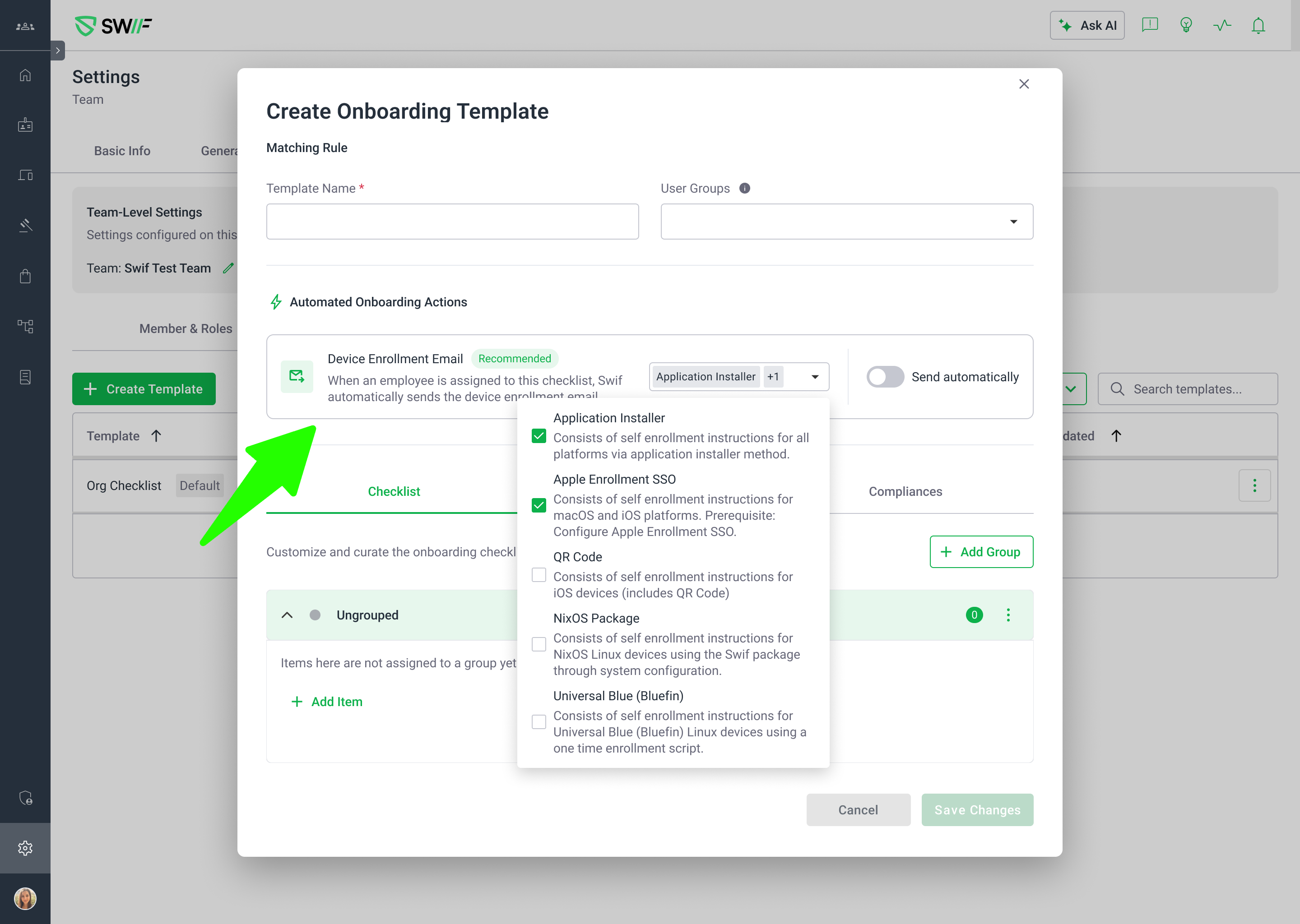
In Onboarding → Templates, admins can now enable “Send automatically” for the employee‑facing device enrollment email.
When enabled, Swif will automatically send the selected enrollment email(s) to new hires as soon as they are imported or added from supported sources (e.g., HRIS / IdP sync, manual user creation, etc.), based on the template in scope.
Choose which enrollment email(s) to auto‑send
Within the template’s Device Enrollment Email section, admins can choose one or more enrollment methods to send automatically:
Application Installer
Apple Enrollment SSO
QR Code
NixOS package
Universal Blue (Bluefin) package
Works with automatic user sync
This feature is designed to work with upcoming/related auto‑sync capabilities for directories and HRIS providers (for example: Google Workspace, Okta, Azure AD, Deel, or Finch).
When a new hire appears in Swif via sync or is created in the app and falls under a template with auto‑send enabled, Swif will take care of sending the configured enrollment email(s), without requiring any manual action from IT.
Why it matters
Removes the need to log into Swif and invite each new employee one‑by‑one.
Ensures every new hire receives the correct device enrollment instructions automatically, aligned with your onboarding template.
Reduces onboarding delays and mistakes caused by manual email triggers.
How to use it
Go to Onboarding → Templates.
Edit or create an employee‑facing onboarding template.
In Device Enrollment Email:
Turn on “Send automatically”.
Select the enrollment method(s) you want to send to new hires.
Save the template. From now on, any new hire in scope of that template will receive the chosen enrollment email(s) automatically.