Compliance Center: NIS2 Framework Snapshot
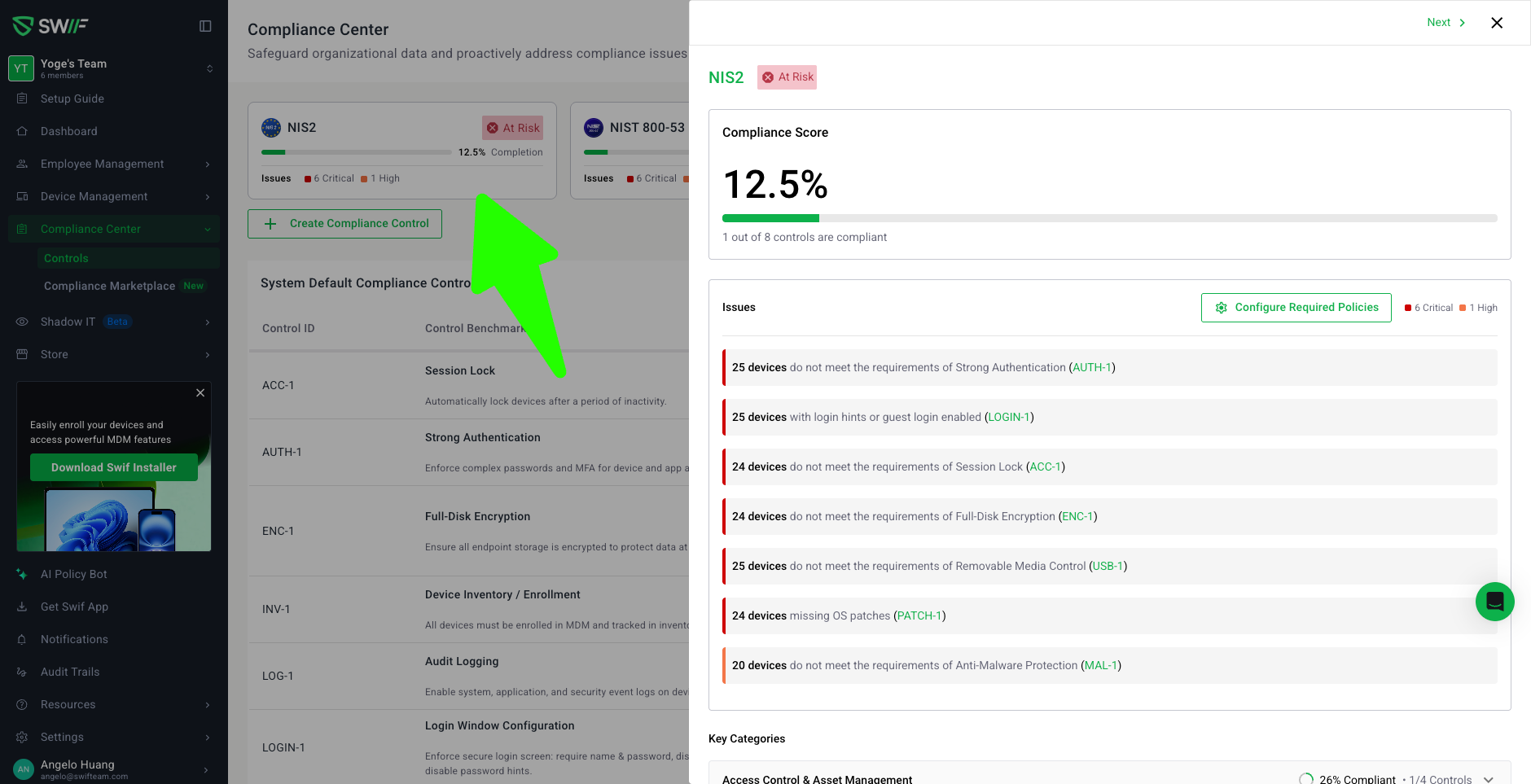
We’ve added NIS2 as a first-class framework snapshot in the Compliance Center so you can quickly understand how your device and asset posture maps to NIS2 Article 21 requirements.
What’s new
NIS2 framework card in Compliance Center
New NIS2 card appears in the Framework Snapshot row alongside other frameworks.
Shows:
Overall NIS2 compliance score (0–100%).
Status badge using the same thresholds as other frameworks:
On track: 80–100%
Need attention: 50–79%
At risk: 1–49%
Not started: 0%
Issue indicators by severity (Critical, High, No Issues), reusing existing icons and colors.
Fully compatible with the new horizontal scroll/overflow behavior for framework cards.
NIS2 details panel
Clicking the NIS2 card opens a details panel with:
Overall NIS2 score and status badge.
At least 3–4 key NIS2 categories with their individual scores, such as:
Access Control & Asset Management (Art. 21(2)(i), (j))
Cryptography / Encryption (Art. 21(2)(h))
Vulnerability Handling & Secure Maintenance (Art. 21(2)(e))
Basic Cyber Hygiene / Endpoint Protection (Art. 21(2)(g))
Data Handling & Media Controls (device-level)
Asset Lifecycle Controls (Decommission / Disposal)
An Issues section listing top device/asset-related NIS2 gaps, for example:
Devices missing critical security controls (e.g., unsupported OS, missing EDR).
Devices without full inventory/ownership data.
Devices lacking encryption or screen lock.
No-issue state for NIS2
When there are no NIS2 gaps, the NIS2 details panel shows a “No issues found for NIS2” view, using the same empty-state styling as other frameworks and reinforcing continuous monitoring.
Handling of manual controls
NIS2 categories that are MANUAL-only (for example, Asset Lifecycle Controls (Decommission / Disposal) with control
OFF-1) are:Shown as “Not Supported” instead of “At Risk”.
Excluded from NIS2 score calculations, so they do not drag your score down for controls that cannot be automatically validated.
Controls with no matching devices
Non-manual controls that are in scope but have 0 matching devices (e.g., Linux-only control when the org has only macOS/Windows) still appear, but:
All related stats show
0(0 devices / 0 compliant).They do not break the UI and are not treated as compliant by default.
NIS2 placeholder card when not enabled
If NIS2 is not enabled in your Compliance Scope:
The active NIS2 snapshot card is hidden.
A placeholder NIS2 card appears after all active frameworks with a clear CTA to enable NIS2 in settings.
This follows the same layout and behavior as other framework placeholders.
How to enable
Go to Compliance settings → Framework Scope.
Select NIS2.
Open Compliance Center → Framework Snapshot to see the NIS2 card and details.