Accessory enrollment: custom types, images, and better CSV validation
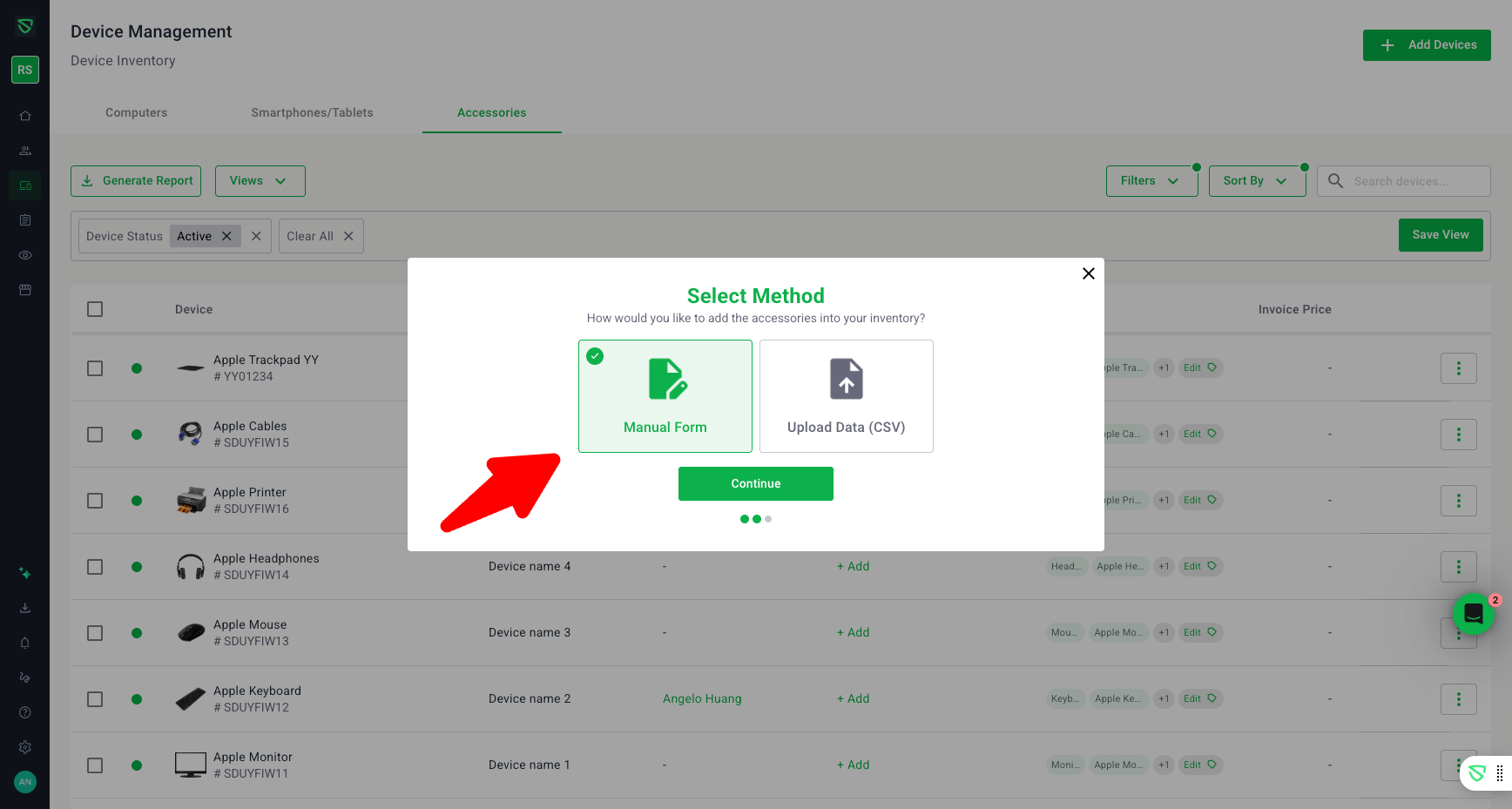
We’ve improved how admins enroll and report on accessories in the Swif web app:
Custom accessory fields that remember your inputs
When adding an accessory in Device Enrollment → Add Accessory, you can now add your own values for:Device type (for accessories only)
Manufacturer
Model
Once added, these values are saved for your team and appear as options in future dropdowns. This helps you standardize accessory naming (e.g., “Docking Station”, “KVM Switch”, “Monitor Arm”) without needing backend changes.
Accessory images for clearer inventory
Accessory cards can now display a custom image when adeviceTypeImageURL is set. If the image URL is invalid or cannot be loaded, the UI automatically falls back to a standard IMAGE_NOT_SUPPORTED placeholder instead of showing a broken image.Reserved device types are protected
To keep your main device inventory clean, the following device types are now reserved and cannot be used for accessories:Laptop
Desktop
Tablet
Phone
If an admin attempts to add one of these reserved values as an accessory type, the UI blocks it and shows a clear notification explaining that these types are reserved for primary devices only.
Smarter reports for accessories
The Device / Accessory reports view and filters have been updated to:Show custom accessory types in the Device Type column
Include custom types as filter options
Ensure accessory-only types don’t leak into Computer/Tablet/Phone reports, and reserved device types don’t appear where they shouldn’t
Clearer CSV upload rules for accessories
In Device Enrollment → Bulk Upload (Accessories), the CSV tooltip now clearly states that:Serial Number and Device Type are required columns
The Device Type value must be an accessory type, not a general Laptop/Desktop/Phone/Tablet
These changes make accessory enrollment more flexible while keeping your core device inventory and reports accurate and easy to manage.